Create Entity
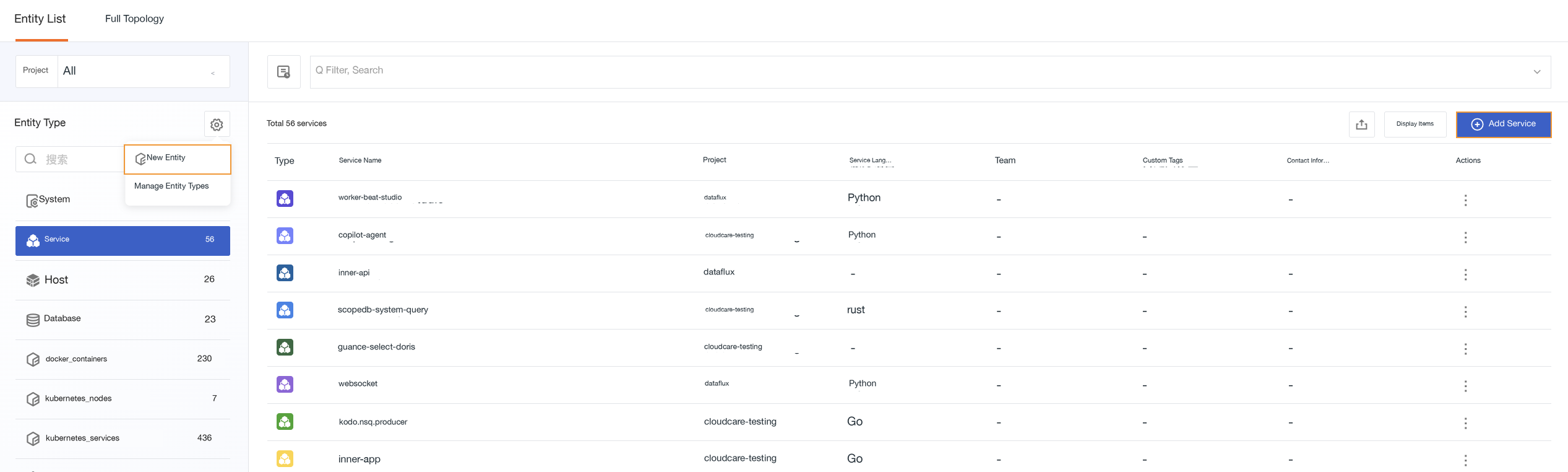
Go to Unified Catalog > Entity List, click Add in the top-right corner, or click the settings icon on the left and select Create Entity to open the Create Entity dialog.
Note
Configuration items differ by entity type. Be sure to select the correct type before filling in the configuration.
Basic Information
- Select the entity type to add, including: System, Service, Host, Database, etc.
- Define the entity name.
Configuration
In the Configuration area, you can configure entity attributes using either the Editor or YAML mode. Switch between them by clicking the tab in the top-right corner.
Editor Mode
1. Basic Information
| Field | Description |
|---|---|
| Display Name | The name displayed in the entity list. If provided, it takes precedence over the system name. |
| Description | Detailed description of the entity. |
| Project | The project to which the entity (system/service/host/database, etc.) belongs. |
| Resource ID (ARN) | Required when creating a new cloud resource. It is the globally unique identifier of the cloud resource. |
2. System
| Field | Description |
|---|---|
| System Type | Select the system type: Business Application, Shared Service, Middleware Platform, Data Platform, Internal Tool. |
| Lifecycle | Select the current lifecycle stage: Planning, Building, Running, Maintaining, Decommissioned, Retired. |
| Environment | Select the deployment environment: Production, Staging, Testing, Development. |
| Severity | Select the severity level: Critical, Important, Normal, Low, Test. |
| Field | Description |
|---|---|
| Service Type | Select the service type: Web, DB, Cache, Queue, etc. |
| Service Language | Select the service language: Java, Go, Python, etc. |
| Lifecycle | Select the current lifecycle stage: Planning, Building, Running, Maintaining, Decommissioned, Retired. |
| Environment | Select the deployment environment: Production, Staging, Testing, Development. |
| Field | Description |
|---|---|
| Host IP | Enter the host IP address. |
| Operating System | Select the operating system: Linux, Windows, macOS. |
| Lifecycle | Select the current lifecycle stage: Planning, Building, Running, Maintaining, Decommissioned, Retired. |
| Environment | Select the deployment environment: Production, Staging, Testing, Development. |
| Cloud Provider | Select the cloud provider. |
| Instance ID | Select the instance ID. |
| Region | Select the region, e.g., cn-hangzhou. |
| Availability Zone | Select the availability zone, e.g., cn-hangzhou-q. |
| Field | Description |
|---|---|
| Database Type | Select the database type: MySQL, PostgreSQL, MongoDB, Oracle, SQLServer, etc. |
| Version | Enter the version number. |
| Host Address | Enter the host address. |
| Port | Define the host port. |
| Service Address | Define the service address, e.g., 10.0.0.12:3306. Used to correlate with the server tag in the official collector. Format: host:port. |
| Region | Select the region, e.g., cn-shenzhen. |
| Availability Zone | Select the availability zone, e.g., cn-shenzhen-e. |
| Environment | Select the deployment environment: Production, Staging, Testing, Development. |
| Lifecycle | Select the current lifecycle stage: Planning, Building, Running, Maintaining, Decommissioned, Retired. |
| Severity | Select the severity level: Critical, Important, Normal, Low, Test. |
| Field | Description |
|---|---|
| Cloud Provider | Select the cloud provider: Alibaba Cloud, AWS, Tencent Cloud, Huawei Cloud, Azure, etc. |
| Cloud Account | Enter the cloud account for this entity. |
| Resource Type | Select the resource type, e.g., aws_s3_bucket. |
| Region | Select the region, e.g., cn-shenzhen. |
| Availability Zone | Select the availability zone, e.g., cn-shenzhen-e. |
| Resource Attributes | Click Add to enter key:value pairs. |
3. Correlation
| Field | Description |
|---|---|
| Health Configuration | Select the health calculation method for this entity. Health configuration is supported for all entity types. Health reflects the overall running status of an entity. It has four states: OK, Warning, Critical, Unknown. Dropdown options vary by entity type: For system type: For non-system types: -. |
| Component Entities | The services, hosts, databases, etc. that make up this system. The system health is calculated based on these component entities. (Only visible for system type.) |
| Parent Entity | Select the upper-level business domain, platform, or parent system to indicate the parent-child relationship. |
| Runtime Dependencies | Select the other systems, services, or resources that this system depends on. |
4. Team
Select the team responsible for maintaining this entity.
5. Custom Tags
Select or create tags for classification and filtering.
6. Contact Information
Click + to add contact information such as email, phone, Slack, etc. Only the name is displayed to protect privacy; click to view details.
7. Links
Click + to add external links such as repositories, documentation, views, etc. Repository type logos are automatically identified.
YAML Mode
Switch to the YAML tab to edit the configuration file directly.
Click Configuration Instructions in the top-right corner to view the field specification.
Configuration example (service type):
attributes:
  env: ''
  host: 172.16.161.51
  name: kodo.nsq.producer
  time: '2026-03-30T17:27:01.131146+08:00'
  project: cloudcare-testing
  version: ''
  language: go
  namespace: default
  sourceType: message_queue
  serviceType: message_queue
  clusterNameK8S: ''
  depends_on:
    - service:kodox.nsq.consumer
    - service:kodo.nsq.consumer
  component_of:
    - host:172.16.161.45
    - host:172.16.161.54
    - host:172.16.162.24
    - host:172.16.162.30
  custom_tags: []
  contact: []
  link: []
telemetrySelectors: []
Complete Creation
After filling in the information, click Save. The system will automatically return to the Entity List page, where the newly created entity is immediately visible.
Further Reading
You may also be interested in: