Log Explorer
After log data is collected into the system, you can view all log data reported in the current workspace in Logs > Explorer.
Note
If the role of the currently logged-in account has set "Show only rules related to me" in Logs > Data Access, the queried log content will be affected accordingly.
View Modes
To meet viewing and analysis needs in different scenarios, the Explorer supports multiple display modes:
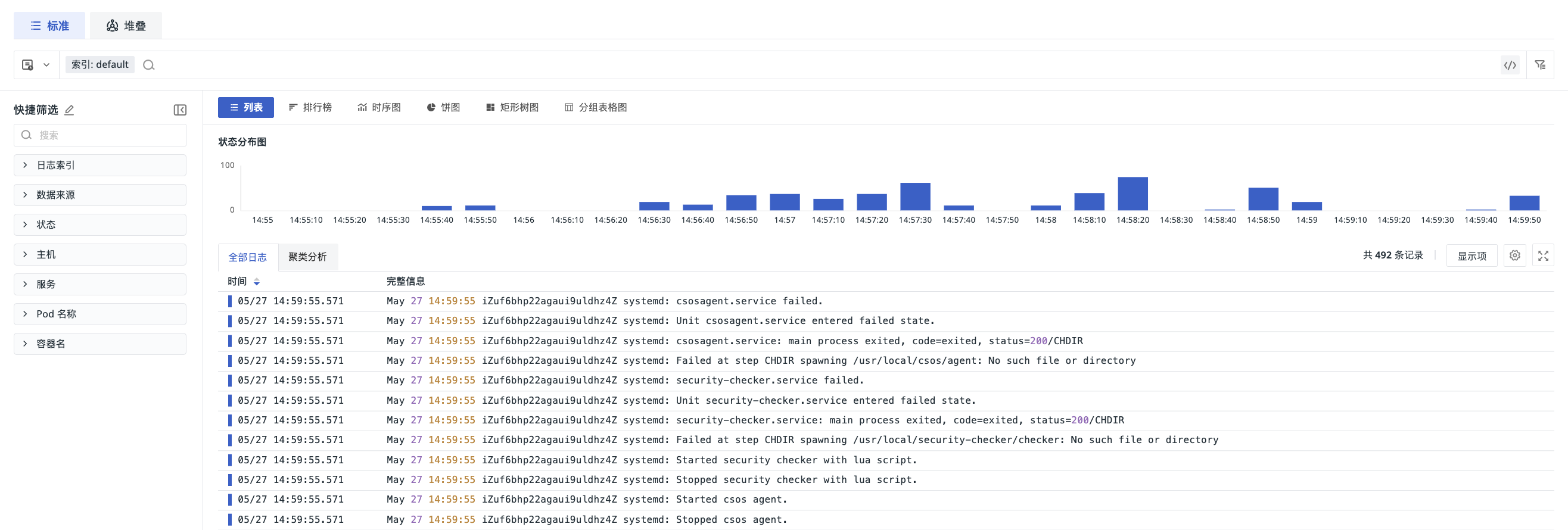
List
Each field of a log occupies a separate column, fully displaying all field content so you can directly view the detailed information of each log entry.
In text or expanded content that supports segment operations, you can click Chinese or mixed Chinese-English segments to filter, inverse-filter, or copy. Plain text is separated by whitespace and common punctuation; identifiers, paths, IPs, times, URLs, and other content are recognized according to their respective rules. For details, see Selecting Log Segments.
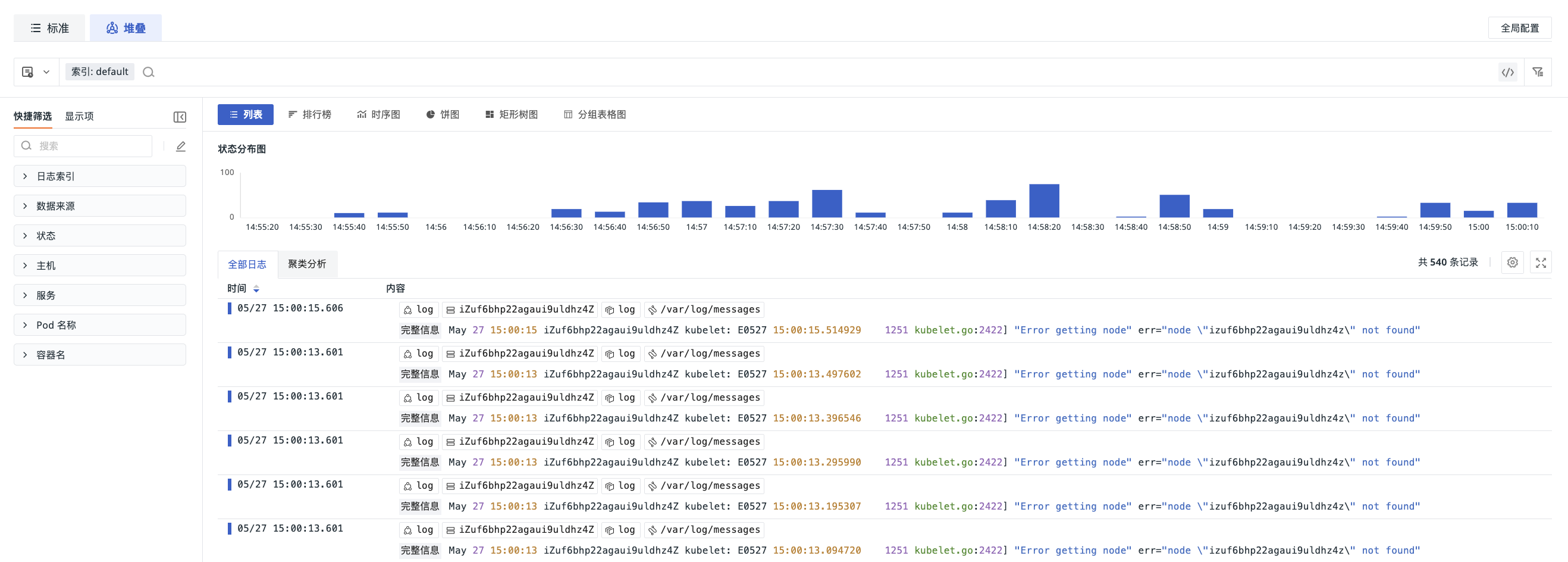
Stacked List
Except for the time field (time), all other fields are merged into the same column and displayed in multiple lines within the cell:
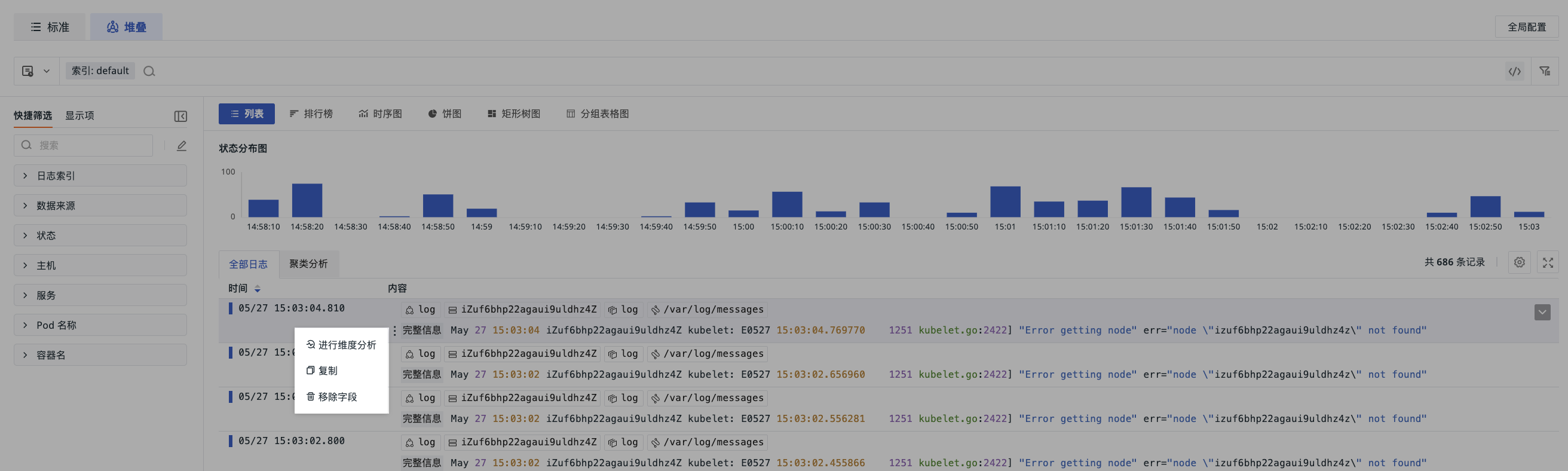
In stacked mode, you can perform the operations shown in the figure on specific fields:
The Original Log and other text values that support segment operations in the stacked list also support selecting Chinese and mixed Chinese-English segments for filtering or copying. The selection range may differ between hover-based word selection in the list, the JSON display, and the log details body; when performing operations, use the currently selected range.
If the field content is a JSON structure, the stacked list supports expanded viewing by hierarchy. You can configure the default expansion method for JSON fields in Preferences, including no expansion or full expansion, so you can quickly locate fields in multi-level structures.
Chart
Based on the count, last, first, and count_distinct operations, filter data based on the by condition:
-
Top List
-
Time Series
-
Pie Chart
-
Treemap
-
Grouped Table
View Switching and Configuration Retention
After configuring the analysis dimension, aggregation method, Top/Bottom, and return count in Top List, switching to List or Stacked List does not clear the analysis configuration. When you return to Top List again, the system restores the last configuration.
- When the current log index, time range, query mode, search conditions, and quick filter conditions remain unchanged, existing query results are reused;
- When the query context changes, the original analysis configuration is retained and the query is re-run based on the new context;
- When advanced queries are combined with page analysis configuration, the
BYcondition in the query statement is ignored, and the page analysis dimension takes precedence.
Data Display
JSON Field Preview
In the log data list, a JSON preview entry is displayed next to JSON fields. Through this entry, you can view the formatted full JSON content of the field in a popover, making it easier to read and analyze structured logs.
The top of the popover displays the field name. Click the copy icon in the upper-right corner to copy the entire field value with one click.

All Logs
By default, regular log indexes in the current workspace are queried; cloned indexes are not automatically included. To query cloned data, explicitly select the corresponding cloned index in the index list on the left.

Browsing Mode
The log data list supports two browsing modes: paginated browsing and scroll loading. You can select the mode in Preferences.
Use page numbers to switch between different ranges of log data, suitable for browsing and locating logs page by page when there is a large volume of data.
When using paginated browsing, you can perform the following operations:
- Switch to the previous or next page;
- Enter or select a target page number;
- Adjust the number of entries displayed per page.
Retains the original continuous browsing style. When you scroll to the bottom of the current data list, the system continues to load subsequent logs.
Switching the browsing mode does not change the current workspace, log index, time range, search conditions, or quick filter conditions.
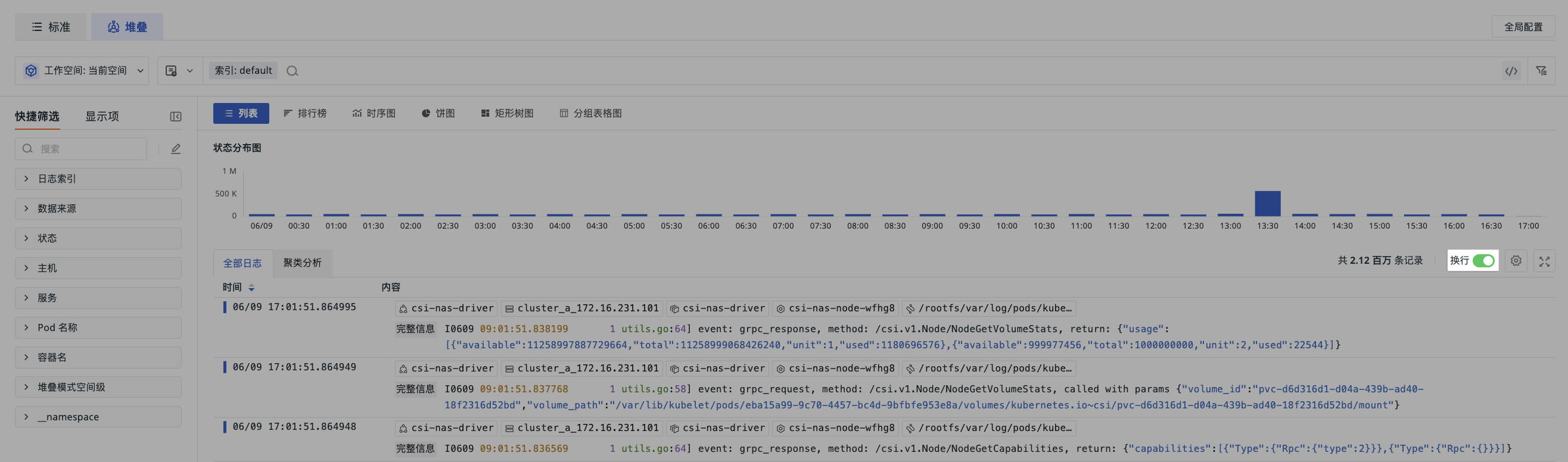
Line Wrap
In the stacked list, if a single log contains many data elements, click the "Line Wrap" button to display the message part of the log on its own line.
Pattern
The Log Explorer provides an efficient clustering feature that performs similarity analysis on logs based on the message field and automatically displays the 50 most recent logs. You can also customize the clustering field. After selecting a time range in the Time Widget, the system analyzes 10,000 logs in that period and aggregates similar entries.

In the Pattern list, you can manage data through the following operations:
-
Click & to sort by document count (descending by default);
-
Click to choose to display 1 line, 3 lines, 10 lines, or all content;
-
Click to export all clustered log data.