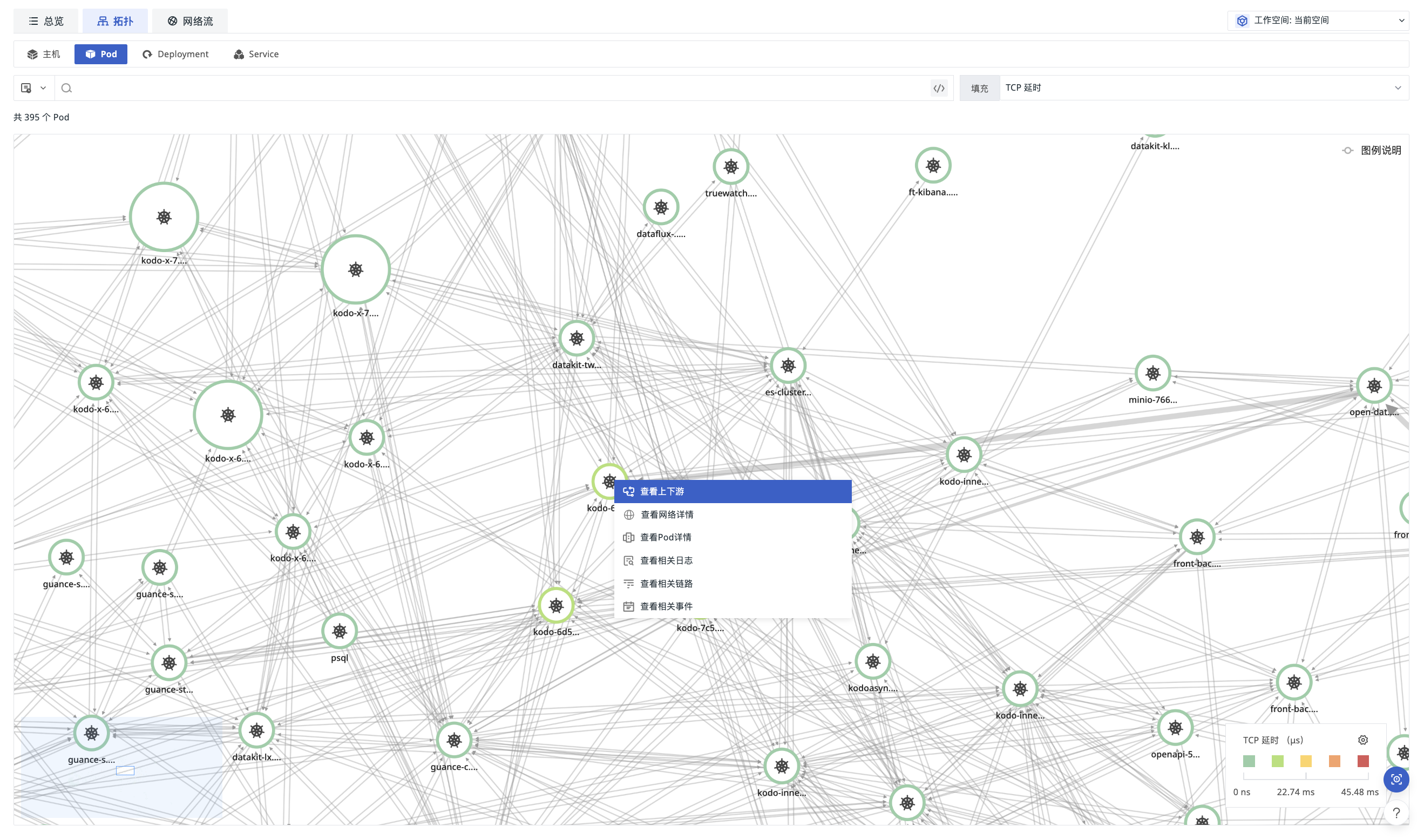
Topology
Go to Infrastructure > Network > Network Flow, switch to Topology to view the upstream and downstream distribution of the network and the network traffic relationships between resources.
Resource Types
Topology supports viewing by the following resource types:
- Host
- Pod
- Deployment
- Service
After switching the resource type, the topology map, search conditions, and available filter fields are updated synchronously.
Managing Topology
You can manage the network topology with the following operations:
- Time Widget: Select the time range to query and refresh data.
- Search and Filter: Filter resource nodes and their associations by keyword or tags.
- Fill: Select network metrics such as TCP latency as the basis for node filling.
- Resource Nodes:
- Icons distinguish different resource types.
- Node border colors reflect the values of the fill metric.
- Bidirectional curves indicate the direction of network traffic between resources.
- Node size and line thickness reflect the volume of network traffic.
- Custom Range: Set color ranges for the fill metric; connections and nodes outside the ranges will be grayed out.
Warning
In the host topology, if the target host is not in the current workspace, but the target domain exists and the port is less than 10,000, the domain may still appear in the topology map.
Association Analysis
Click a node to view its upstream and downstream associations, or jump to related details, logs, traces, and events pages.
Click List at the top of the page to return to the network flow list view.