Event Details
In the Unrecovered Events, All Events, and Event Changes lists, click any event data to view the event details, including basic attributes, extended fields, alert notifications, and historical records.
Basic Attributes
Detection Dimensions
Specific attributes used to identify and classify events during the event detection process. Click the dimension label to view related detection content. The following operations are supported:
-
Filter field values: Filter based on the field value of the detection dimension to view event data related to that field.
-
Reverse filter field values: Reverse filter based on the field value of the detection dimension to view other event data excluding that field.
-
Copy: Copy the label content to the clipboard.

Event Content
Based on the event content description defined in the monitor configuration page.
Detection Metrics
The detection metric query statement configured in the monitor, showing the specific query logic at the time of event triggering.
Historical Trend
Displays the historical trend of the detection result value for the current event, including trigger threshold reference lines and detection interval markers. Click Get Chart Query to obtain the current query statement, which can be used to reproduce the chart in dashboards or notes.

Extended Fields
View and manage the attribute fields included in this event data:
-
In the search bar, enter a field name or value to quickly search and locate.
-
After checking the field alias, it can be viewed after the field name.
-
For each field, the following operations are supported: filter field values, reverse filter field values, and copy:
Field |
Property |
|---|---|
| Filter field values | Add this field to the explorer search bar to view all data related to this field. |
| Reverse filter field values | Add this field to the explorer search bar to view all data except this field. |
| Copy | Copy this field to the clipboard. |

Alert Notifications
Displays information such as the notification target type and notification target name. Click to expand and view the detailed information of the alert notification target. Hover to copy.
Historical Records
Displays the detection object host, anomaly/recovery time, and duration.
Click on a piece of data to open the corresponding explorer for that data, and automatically substitute df_fault_id for query filtering to view the complete lifecycle of the same fault.

Related Events
Supports viewing related events within a specific time period based on four filter fields to assist in locating the root cause and impact scope of the fault:
| Filter Field | Field Name | Description |
|---|---|---|
| Same Fault ID | df_fault_id |
A special ID marker used to record the entire process from anomaly triggering to recovery for a specific detection dimension. |
| Same Monitor | df_monitor_checker_id |
Other events generated by the same detection rule. |
| Same Detection Dimension | df_dimension_tags |
Other events of the same detection object. |
| Same Level | df_status |
Other events of the same alert level. |
Related SLO
If an SLO is configured in the monitor, the related SLO information can be viewed, including the SLO name, monitor, compliance rate, error budget, and target.
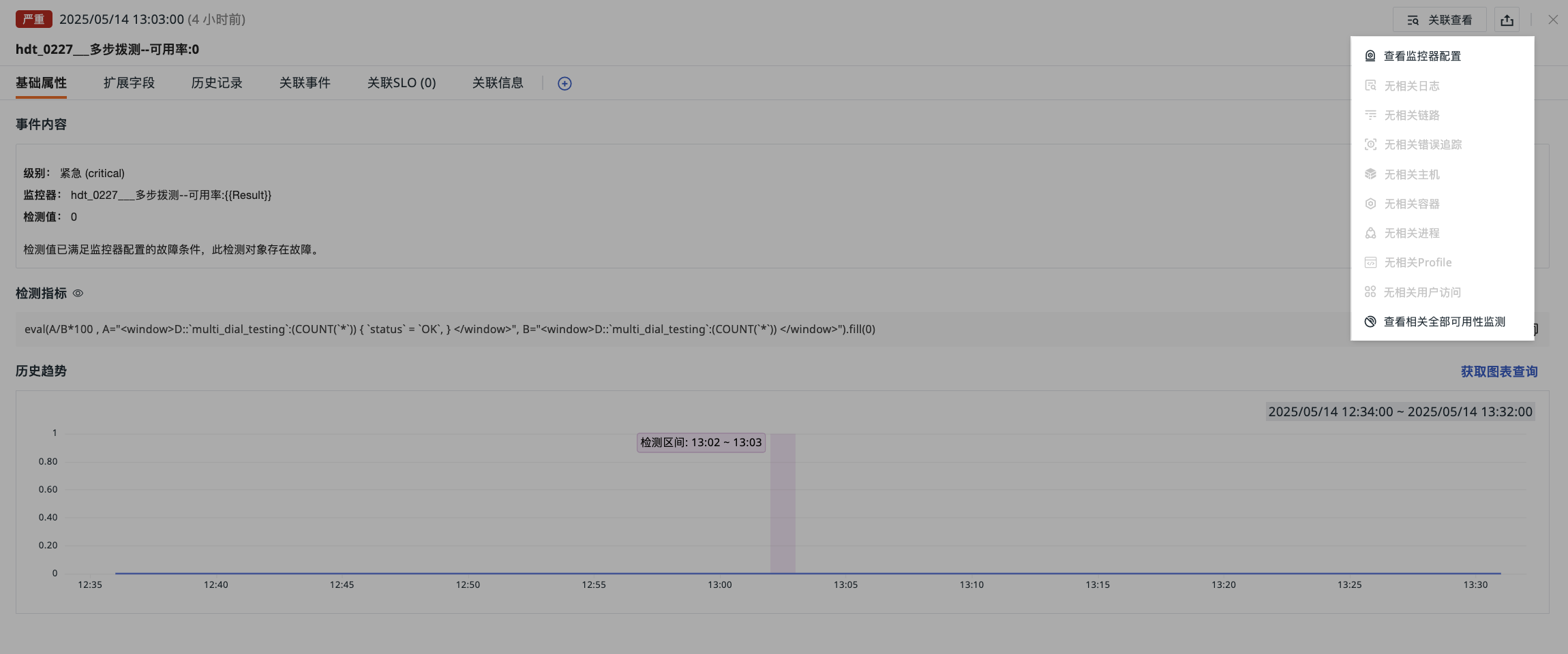
Related Queries
In Related Queries, you can view all queries related to the current event, including:
-
View monitor configuration
-
Related logs, APM, error tracking, hosts, containers, processes, Profile, RUM, Synthetic Tests, etc.
Bind Built-in Views
Supports binding built-in views (user views) to the event details page. Click Bind Built-in Views to add a new view to the current event details page.

TOBY AI TruePilot Intelligent Analysis
Events triggered based on monitor detection rules can be directly analyzed by TOBY AI TruePilot for intelligent analysis, obtaining AI-assisted fault diagnosis suggestions.