Metrics Analysis
After collecting data and reporting it to a workspace, you can query and analyze metrics and other data types on the Metrics > Metrics Analysis page.
Query Modes
Metrics Analysis supports four query modes:
- Simple Query: Select a measurement, metric, and aggregation method through a visual interface.
- Expression Query: Perform secondary calculations based on simple query results.
- PromQL Query: Enter native Prometheus query statements.
- Data Source Query: Select a data source connected via DataFlux Func (Automata) or a directly connected TiDB Cloud Lake data source, and use the corresponding native query statements.
For more details, see Chart Query.
Query results can be viewed in four visualization modes:
- Area Chart
- Line Chart
- Bar Chart
- Table Chart
Table Chart
The table chart mode supports four display types:
- Time Series Mode
- Group Mode
- Query Tool
- Prom: Returns only PromQL query results.
In the first three display modes, query results return up to 2,000 records by default. To adjust the return count, use the slimit parameter, with a maximum of 10,000 data records.
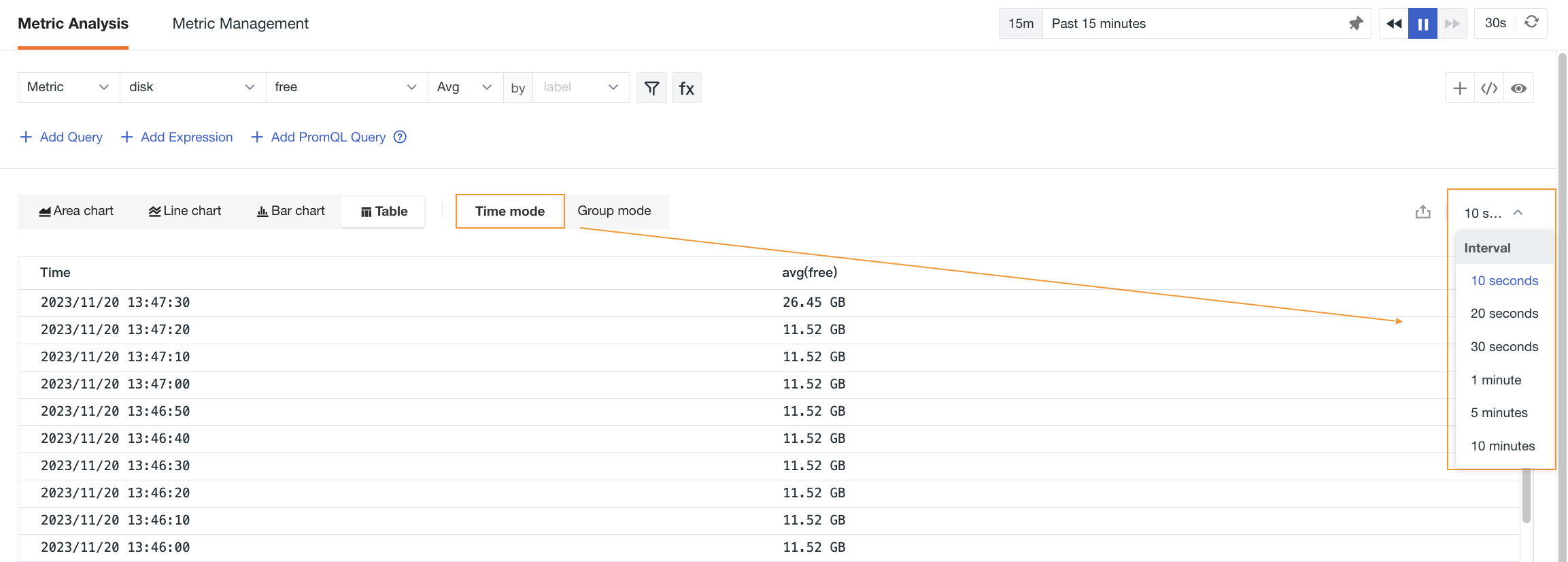
In time series mode, you can display query data by selecting different time intervals.
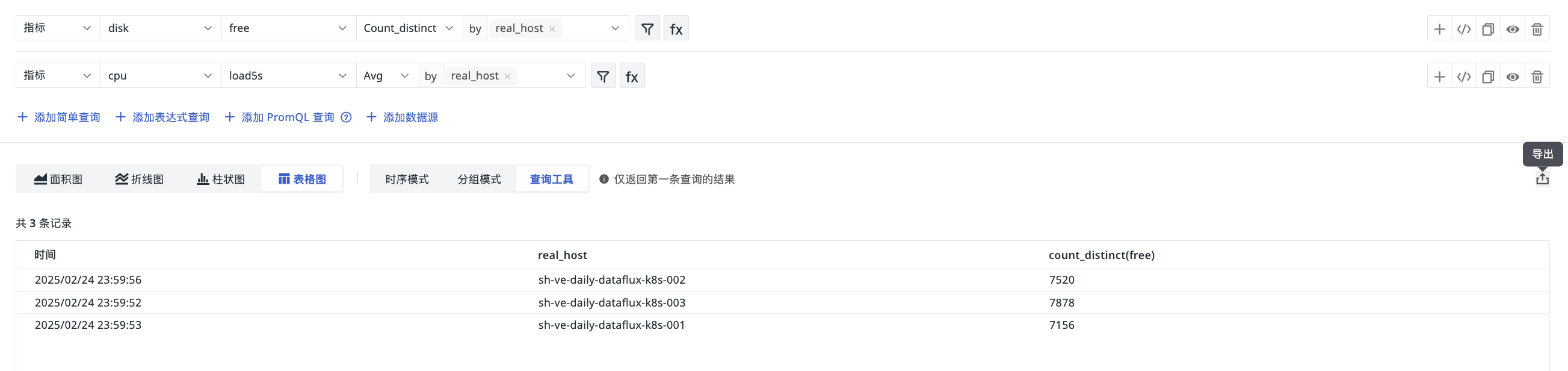
The results of the "Query Tool" display are consistent with those in Shortcut > Query Tool. If you have added multiple queries and enabled the status, the first query result is returned by default; a maximum of 2,000 records can be exported.
Prom mode supports exporting query results. When a time range is specified in the PromQL query statement, all data within that range is displayed, unaffected by the page time widget.
For more information on data queries, see Chart Query and Query Tool.
Query History
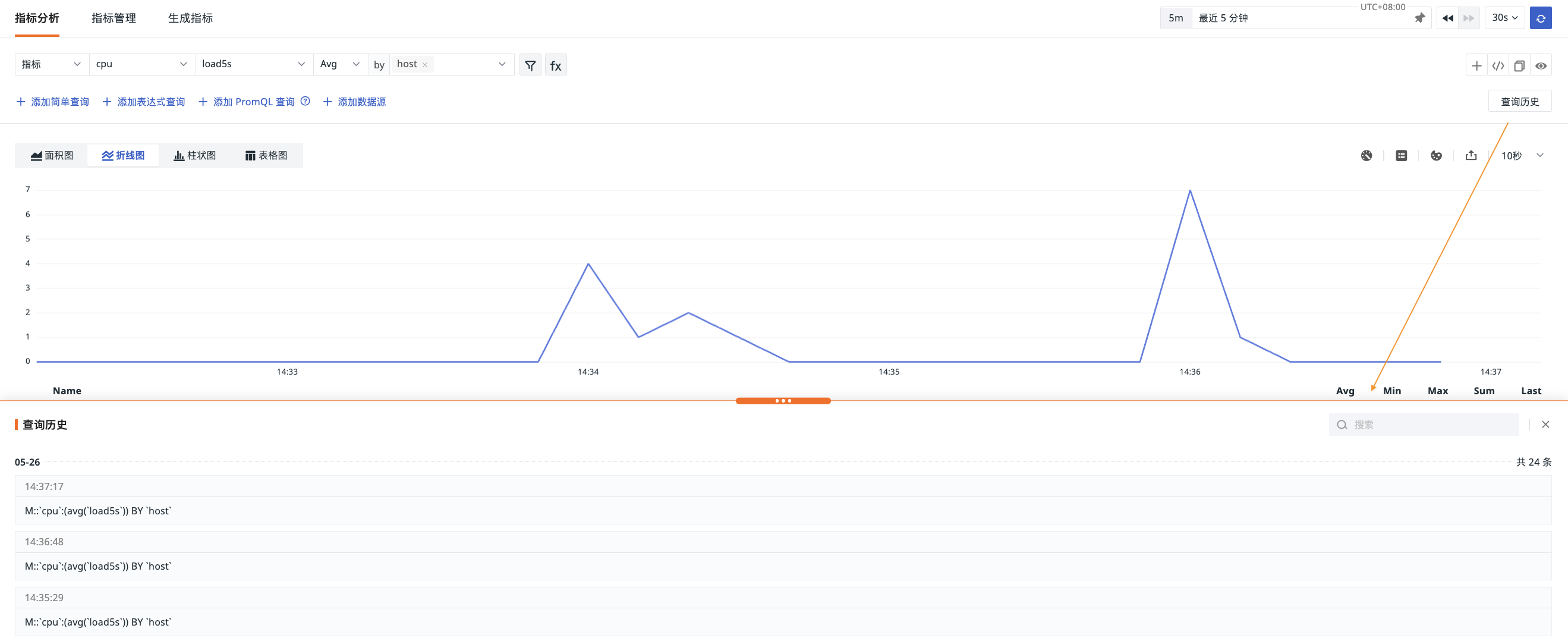
Through the "Query History" entry, you can view query data from the past week, including query statements and corresponding timestamps.
Independent Chart
Note
When there is only one query statement, the independent chart toggle is automatically hidden.
When you add multiple queries and the units of the query results are inconsistent, you can enable the independent chart mode. As shown below:
- Before enabling independent chart:

- After enabling independent chart:

Manage Queries
You can manage the Metrics Analysis page through the following operations.
Query Return Limit
When querying raw data, returning too many data points can cause line charts, area charts, and other visualization types to load slowly, affecting the user experience.
In this case, you can specify that each query returns the top or bottom N (20/50/100/500) data series after sorting. The system sorts each series by its last value within the query time range and returns the Top N or Bottom N results. For example, filtering Top 5 from 20 series returns the 5 series with the largest last value.

Note
- This setting only applies to area charts, line charts, and bar charts.
- If
slimitis declared in the query statement, theslimitin the query statement takes precedence.
Cross-Workspace Query
Under the current site, you can perform a joint query across multiple workspaces to obtain a complete metrics view of different businesses or projects under that site for comprehensive analysis and comparison.

Analyze Chart
Click on a data point in the chart to view similar trend metrics, drill down for analysis, or view associated logs, traces, processes, and other data.
For more details, see Analyze Chart.
Data Format
The numeric values in query results support flexible display format settings. You can set the number of decimal places:
- 0/1/2/3 decimal places
- Full precision
You can also choose whether to display data with thousands separators and scientific notation.
Units
You can configure units for query data display.
For specific configuration operations, see Units.
Legend
The legend is an auxiliary element of the chart, used to distinguish data by different colors, points, and shapes. You can hide the legend or adjust its position to the bottom or right by clicking the legend button in the upper right corner of the explorer.
Colors
To better distinguish data trends of different metrics by color, you can click the color settings button in the upper right corner of the explorer to customize the legend colors.
Export
After completing metrics analysis and obtaining query results, you can click the export button to perform the following operations:
- Export to CSV file
- Export to Note
- Export to Dashboard
- Copy to Clipboard
Time Interval
The time interval is the length of time between data points in a time series chart. You can set the time interval to 10 seconds, 20 seconds, 30 seconds, 1 minute, 5 minutes, or 10 minutes using the time interval in the upper right corner of the explorer.
The time widget affects the data display range of metrics analysis, so the available time intervals are automatically adjusted based on the time widget's range. For example, if you choose to view metrics data from the last 15 minutes, you cannot select "1 hour" as the time interval.