Resource Generation
TOBY AI TruePilot can generate dashboard drafts and Pipeline parsing rules based on natural language and real metadata in the current workspace.
Creating and Modifying Dashboards
TOBY AI TruePilot supports creating dashboards through natural language and continuously modifying charts, groupings, and display targets during the draft stage. The entire process includes requirement confirmation, draft, preview generation, and saving.
Prerequisites
- The current account must have dashboard creation permissions.
- The current workspace must have data sources and fields matching the target scenario.
- It is recommended to clarify the monitoring object, data scope, grouping, key metrics, and filtering dimensions in advance.
If only "create a dashboard" is specified without explaining the monitoring target, TOBY AI TruePilot will first ask to supplement the scope. Without creation permissions, the system will prompt the user to contact the administrator and will not proceed with the dashboard creation process.
Entering the Creation Process
- Enter a clear requirement in the conversation, such as "Create a host resource dashboard," or request to organize the current analysis into a dashboard.
- After TOBY AI TruePilot identifies the dashboard creation goal and completes permission checks, the page will prompt whether to enter the AI canvas.
- After confirmation, proceed to the dashboard draft process.
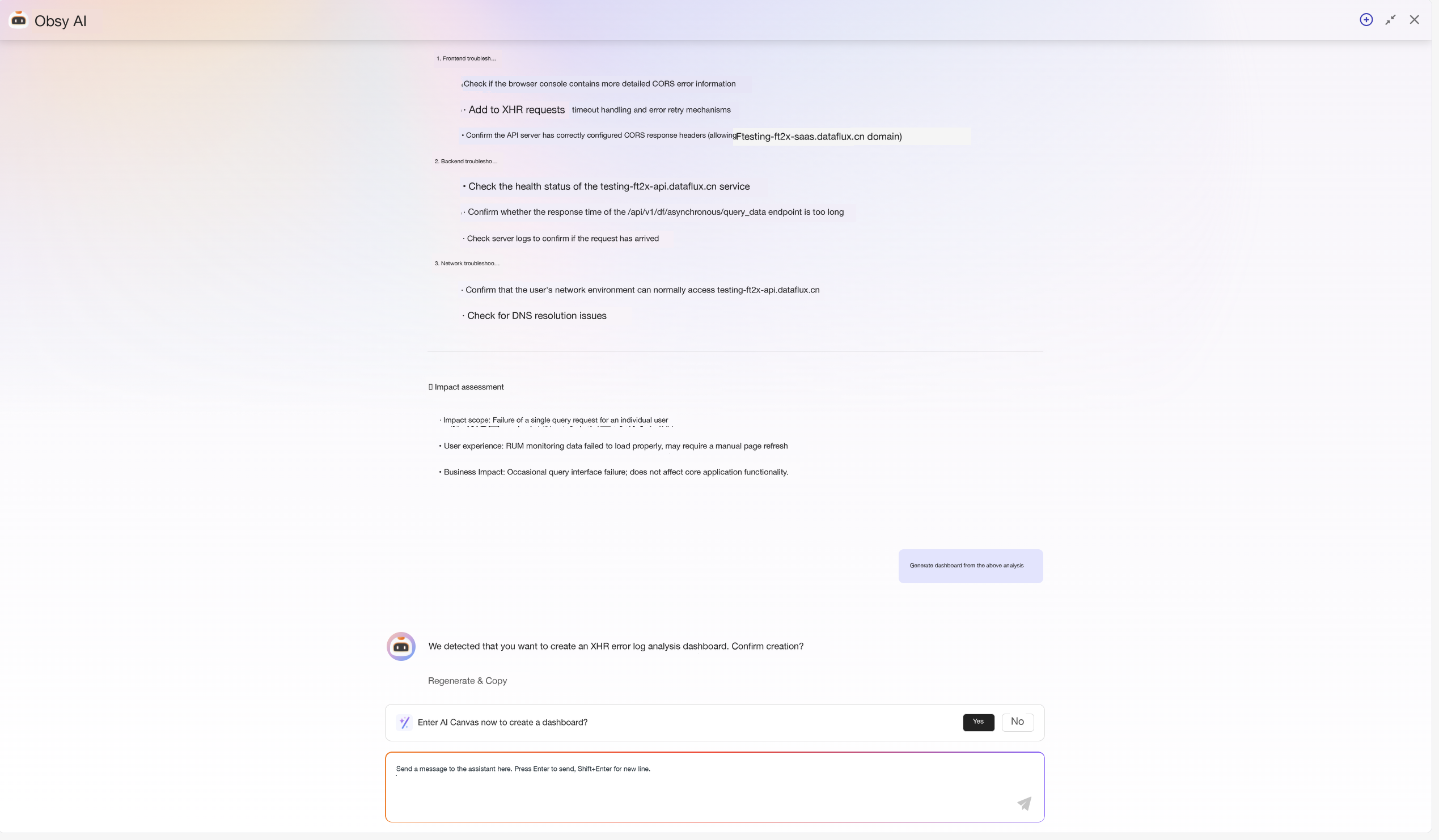
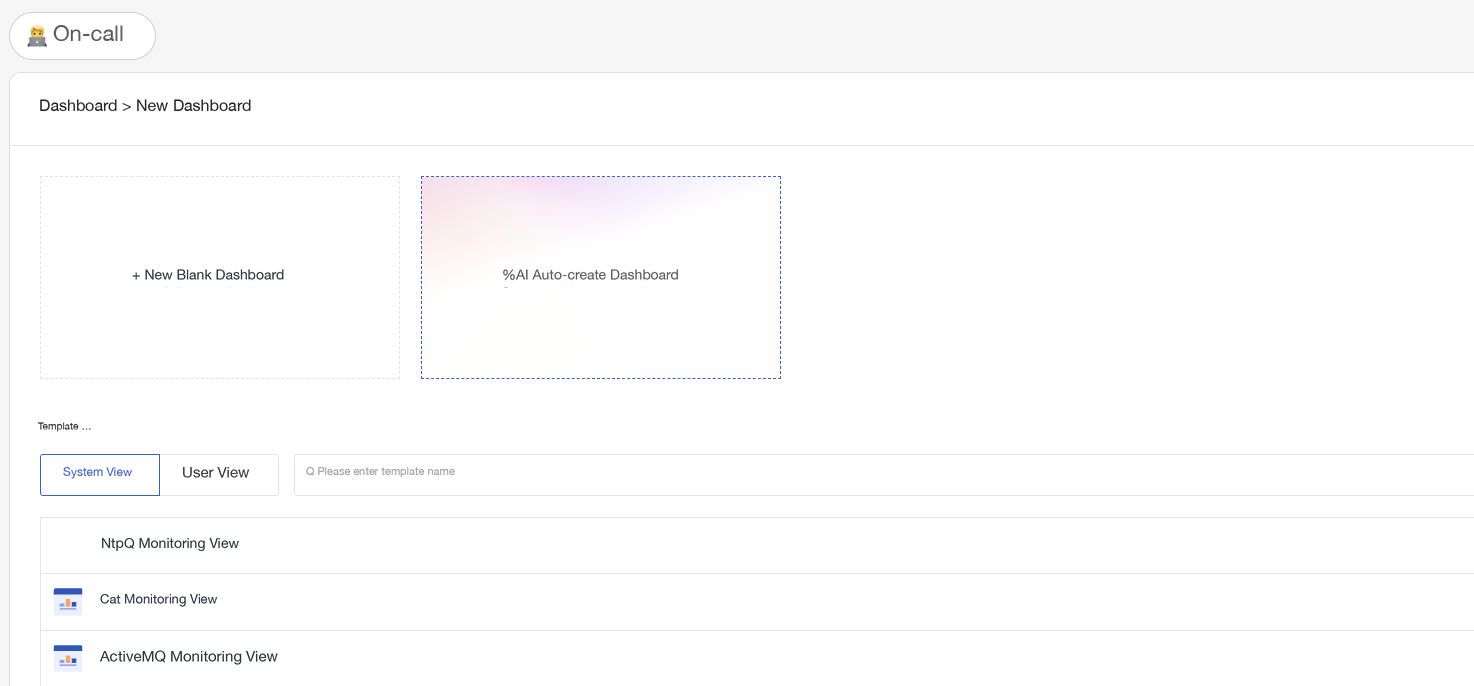
- Navigate to Scenarios > Dashboards > Create Dashboard.
- Select AI Auto-create Dashboard.
Generating and Modifying the Draft
After entering the creation process, first specify the object you want to monitor or analyze. For complex requirements, you can further provide:
- The metrics, logs, events, traces, or other data domains to be used.
- Dashboard groupings and the focus of each group.
- The number of charts, chart types, or analytical perspectives that must be included.
- Filtering dimensions (e.g., host, service, env) or their default values.
- Charts or data ranges you do not want to generate.
TOBY AI TruePilot will query the real data sources, fields, and tags in the current workspace and generate a dashboard draft. The draft includes the name, description, visible scope, view variables, and chart cards, but at this stage, final queries have not been generated, and the dashboard has not been saved as a formal one.
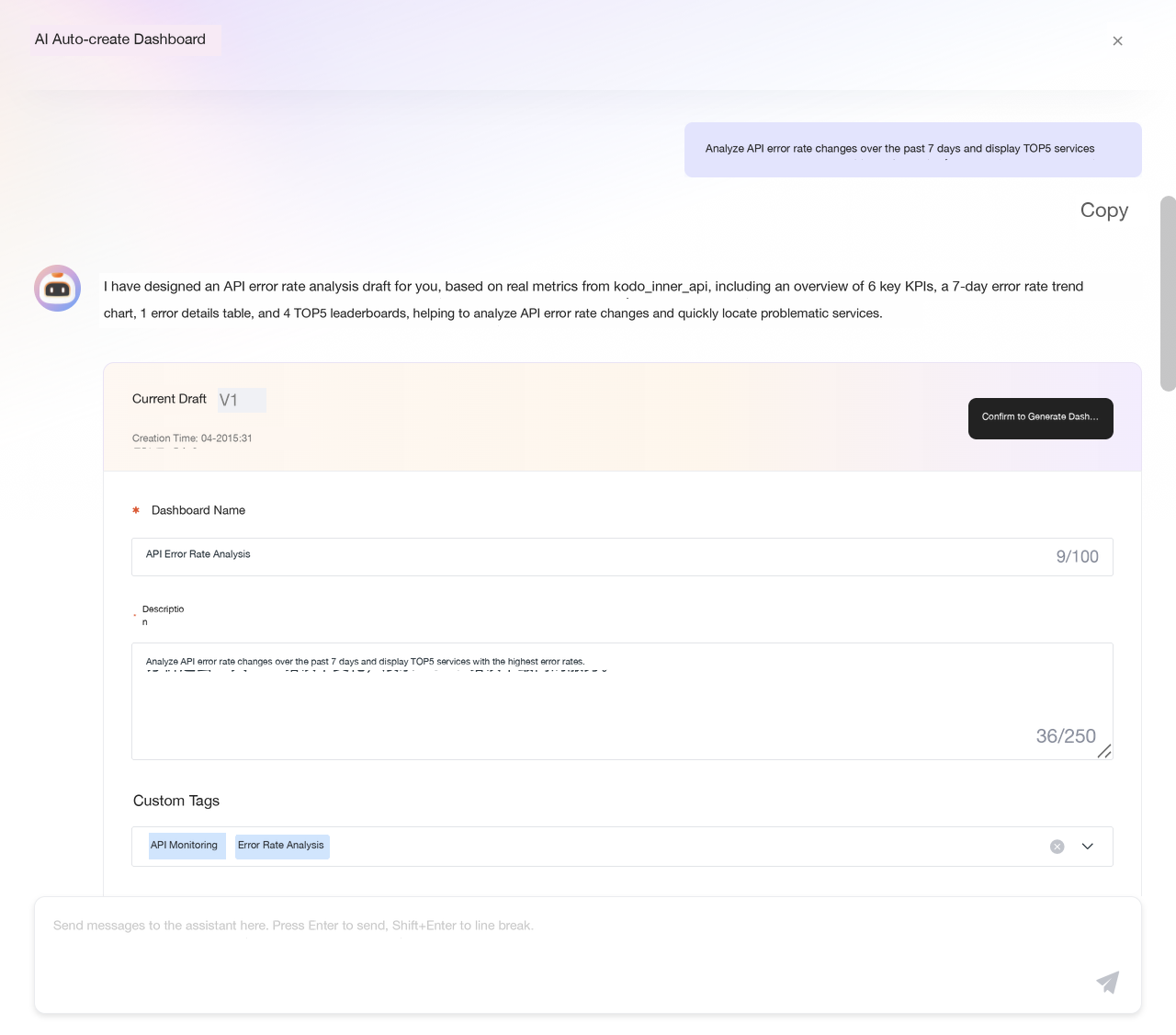
You can continue modifying the draft in the conversation, for example, "Move the error distribution to the first group," "Delete the host count card," or "Add a P95 latency trend grouped by service." When modifying, clearly specify the target chart, group, or result; avoid simply inputting "optimize it."
When data sources, fields, or associated tags are insufficient to support a certain chart, TOBY AI TruePilot will reduce the corresponding content or explain the data gap, rather than using unconfirmed fields to fill the draft.
Previewing and Saving
After confirming the draft, click Confirm to Generate Dashboard to enter the preview. The system will generate the actual configuration for each chart based on the draft and display the number of completed charts, progress, and failure status.
After generation is complete, you can:
- Check the chart data on the preview page and make adjustments.
- Return to the AI conversation via Back to AI Dialog to continue modifying requirements and regenerate.
- After confirming the content is correct, click Save Dashboard.
The dashboard will only appear in the list after it is saved. If some charts fail to generate, the page will prompt you to return to TOBY AI TruePilot for adjustments. The dashboard should not be used directly without verifying the data.
Restoring a Draft
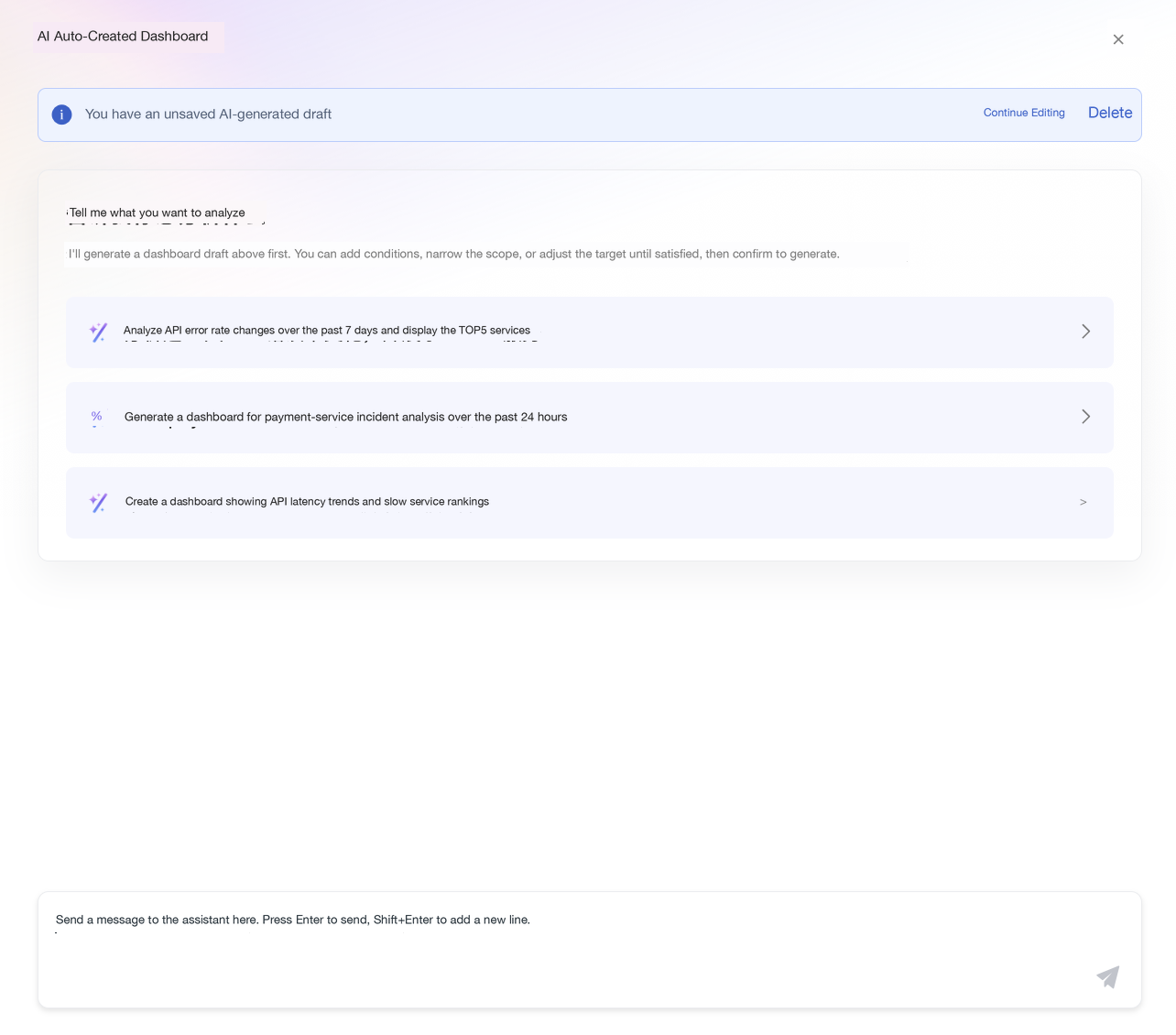
If you exit during the draft stage, you can choose to continue the previous creation or clear the draft and start over when you re-enter the AI auto-create dashboard feature.
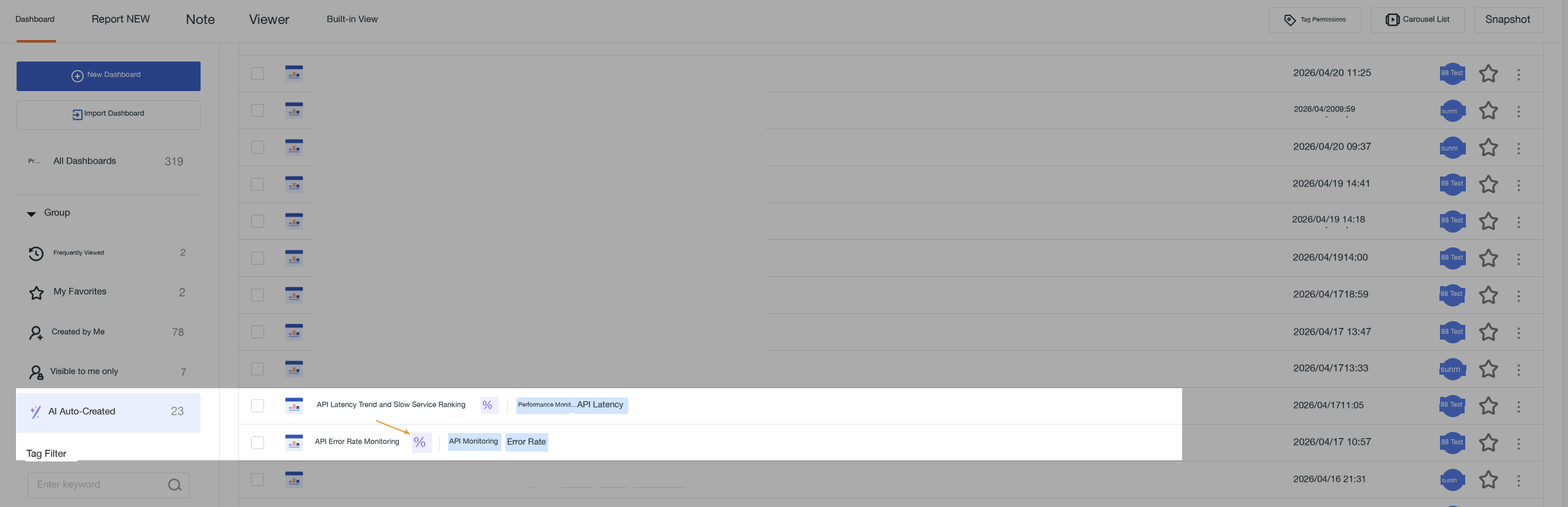
Dashboards generated and saved via TOBY AI TruePilot will display an AI icon in the dashboard list.
Generating Pipeline Parsing Rules
When log or line protocol data needs to be split into structured fields, but you do not want to write a Pipeline from scratch, you can ask TOBY AI TruePilot to generate parsing rules based on representative samples and target fields.
This capability can handle the following common input types:
- JSON logs.
key=valuetext.- Ordinary log text with stable boundaries.
- Complete JSON or line protocol samples containing Point metadata.
- Log text with embedded JSON or other structured fragments.
Generating and Validating Rules
- Provide a representative real sample in the Pipeline flow that supports AI generation.
- Specify the fields to extract, target field names, data types, and which fields should be set as Tags.
- If you want to extract all fields, use the original timestamp as the data time, or retain the outer Point fields, please specify clearly.
- After generation, use the sample to validate the parsing results, confirm that the fields and values meet expectations, and then save and apply the rules following the normal Pipeline process.
If the sample contains fluctuating parts, provide content that reflects the actual format; do not replace structural boundaries with fixed IDs, hostnames, or timestamps. When target field names are unclear, TOBY AI TruePilot will use stable English snake_case names.
Rule Output and Activation
TOBY AI TruePilot will return parsing rules that can be used in a Pipeline, choosing JSON, Grok, key-value splitting, or field reading based on the input structure. The generated results will not automatically delete the original data, nor will they modify the measurement or set fields as Tags without explicit requirements.
The rules will only affect subsequent data processing after they are validated, saved, and enabled in the target Pipeline according to the existing Pipeline activation mechanism. If the sample structure does not match the actual data, field extraction may still fail; in such cases, supplement the sample and re-validate.