Unrecovered Incidents
The Unrecovered Incidents Explorer centrally displays all incident records currently at an alert level within the workspace, helping users fully understand the context of alert incidents, accelerating comprehension and awareness of incidents, while effectively reducing alert fatigue by associating monitors and alert strategies.
The Unrecovered Incidents data source aggregates event data by querying and using df_fault_id as the unique identifier, displaying the most recent data results. You can use this Explorer as a visualization tool to intuitively understand a series of key data points from incident level to triggered threshold baselines. Information from incident level, duration, alert notifications, monitors, to incident content and historical trigger trend charts collectively forms a comprehensive view, helping you analyze and understand incidents from different angles to make more informed response decisions.

Core Logic
| Mechanism | Description |
|---|---|
| Aggregation Dimension | Using df_fault_id as the unique identifier, multiple event triggers for the same detection object are aggregated into a single record for display. This means multiple abnormal triggers from the same host under the same monitor rule appear as only one aggregated record in the Unrecovered Incidents list, preventing alert storms. |
| Time Window | By default, events with df_status != ok from the last 48 hours are displayed. You can adjust the time range, with a maximum query support for data from the last 7 days. |
| Status Determination | The level of the most recent triggered event for that detection object is taken as the current display level. If the incident level changes during triggering (e.g., from warning to critical), the latest level is shown in the list. |
Incident Card
Before clicking into an incident's details, the card presents key information in a structured way:

Incident Level
Based on the monitor's trigger condition configuration, the following status statistics are generated, with severity decreasing in order:
- Fatal (
fatal) - Critical (
critical) - Important (
error) - Warning (
warning) - Data Gap (
nodata)
In the Unrecovered Incidents Explorer, the level of each incident is defined as the level when that detection object most recently triggered an event. This means if the same fault first triggers warning and later escalates to critical, the card will display critical.
For more details, refer to Incident Level Description.
Incident Title
The incident title displayed in the Unrecovered Incidents Explorer comes directly from the title set during monitor rule configuration. It represents the title used when that detection object last triggered an event. Titles typically contain key variable substitutions, such as hostname, metric value, etc., for quick identification of the problematic object.
Duration
Indicates the time from when the current detection object first triggered an abnormal event until the end time of the current time widget, e.g., 5 minutes (08/20 17:53:00 ~ 17:57:38). This duration reflects the fault's persistence and is an important basis for assessing impact scope and urgency. If the duration exceeds the expected recovery time, prioritize handling or escalation.
Alert Notification
The alert notification status for the most recent event triggered by the current detection object, reflecting whether the incident has reached relevant personnel. Mainly includes the following three statuses:
- Mute: Indicates the current incident is affected by a mute rule but no external alert notifications have been sent. The incident is only recorded within the system, suitable for known issues or maintenance windows.
- Identifier of the actual sent notification target: Includes DingTalk bot, WeCom bot, Lark bot, etc., indicating the alert has been successfully pushed to the corresponding channel.
-: No external alert notification was triggered. Possible reasons include no notification configured for the monitor, invalid notification target, or exceeding notification frequency limits.
Monitor Detection Type
Refers to the monitor type, identifying which detection rule triggered this event, such as threshold detection, log detection, anomaly detection, etc. The detection type allows quick location of the monitor configuration entry for rule adjustment or temporary disabling.
Detection Object
When configuring monitor rules, if a by grouping query is used at the detection metric, the incident card will display the filter condition, e.g., source:kodo-servicemap. This indicates the event is a detection result for a specific dimension group, not a global aggregation. Clicking the detection object label can quickly filter other events with the same dimension.
Incident Content
The incident content from the most recent event triggered by the current detection object, sourced from the pre-configured content in the monitor rule. It represents the incident content when that detection object last triggered an event. Content typically includes:
- Specific metric value at trigger time
- Comparison result with the threshold
- Pre-set troubleshooting suggestions or handling instructions
- Complete description after variable substitution
Historical Trigger Trend Chart
This trend is displayed using a Window function, showing the historical trend of the detection result value for the last 60 actual data checks.
Based on the detection result value of the current unrecovered incident, the historical event anomaly trend is displayed. The trigger threshold condition value configured in the monitor detection rule is set as a clear reference line. The system specifically marks the detection result of the most recent event triggered by the current detection object. Through the vertical line in the trend chart, you can quickly locate the specific time point when the event was triggered. Simultaneously, the corresponding detection interval for that detection result is also displayed, providing an intuitive analysis tool for assessing the event's development process and its impact.
Managing Incident Cards
Display Items
The Unrecovered Incidents list supports the following display styles to accommodate different information density needs across scenarios:
- Standard: Displays incident title, detection dimension, and incident content.
- Extended: In addition to standard information, also displays the historical trend of the unrecovered incident's detection result value.
- List: Displays incident data in list form, with customizable fields.
Muting Incidents
In large-scale monitoring scenarios, to avoid the cumbersome steps, time consumption, and easy oversight issues of manually handling large volumes of similar alerts, you can directly "mute" rules on the current page. During the mute period, events continue to be detected and recorded, but no alert notifications are sent. Suitable for the following scenarios:
- Known issues being fixed, requiring temporary noise reduction.
- Planned maintenance windows, expected anomalies.
- Batch alerts for non-production environments or low-priority systems.
Mute Operation Steps
- Hover over a single incident, click Mute on the right side.
- Select the mute time type.
- Confirm.
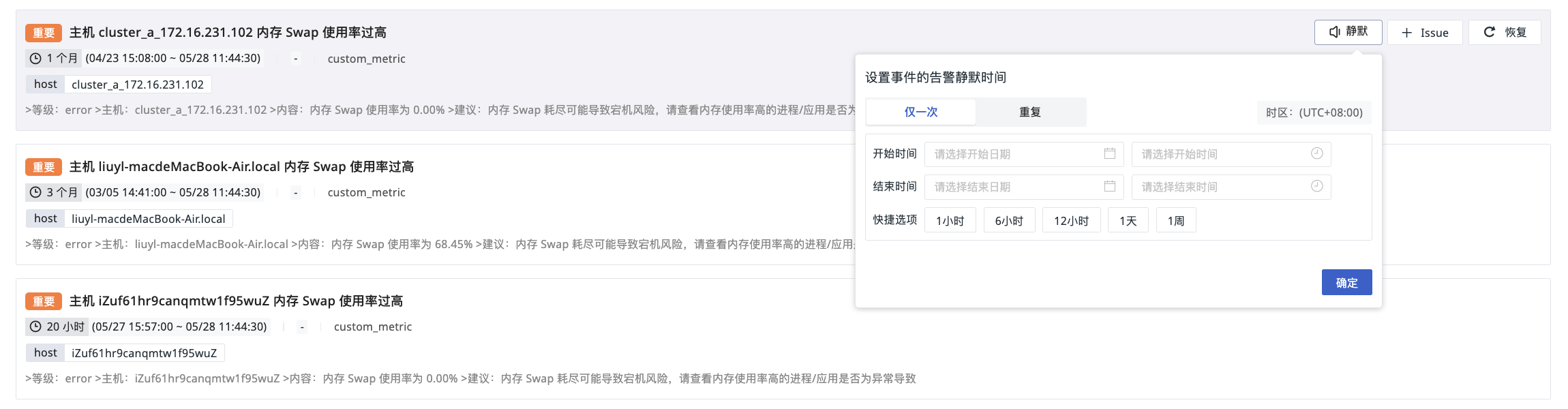
Mute Time Type
Supports customizing the mute start and end time, or quick settings for 1 hour, 6 hours, 12 hours, 1 day, 1 week.
- Select the mute start time and duration.
- Select the mute cycle starting from a certain moment.
- Select the mute expiration time. You can choose to repeat forever according to the above time or repeat until a specific moment.
Recovering Incidents
An incident is considered recovered when its status is normal (df_sub_status = ok). Recovery means the detection object no longer meets the monitor's abnormal trigger conditions or has been manually confirmed as resolved.
- Single Recovery: Can be done via the button on the right side of the rule, or by going to the monitor settings, or manually recovering.
- Batch Recovery: Click "Recover All at Once" to recover all abnormal incidents under the current list.
Recovered incidents are divided into four types:
Name |
df_status |
Description |
|---|---|---|
| Recovery | ok | Previously detected "Fatal", "Critical", "Important", "Warning" abnormal incidents, if not triggered again within N checks, are considered recovered. This is the most common automatic recovery type, indicating metrics have returned to normal range. |
| Data Gap Recovery | ok | Data stops reporting and then resumes reporting, judged as recovery. |
| Data Gap Treated as Recovery | ok | Detection data gap occurs, treated as normal status. |
| Manual Recovery | ok | User manually clicks to recover, supports single/batch recovery. |