Log Explorer
Global Configuration
Note
This feature entry is only visible to members with management permissions.
On the Global Configuration page, you can centrally manage the following three core functions at the workspace level:
-
Quick Filter Configuration: Customize the common quick filter panel across all explorers;
-
Top Fields Configuration: Configure the fields displayed at the top of each log in stacking mode. Indexes without a dedicated configuration will use the global default configuration;
-
Index Key Field Configuration: Define the default prioritized fields displayed in the data list for each index;
-
Query Acceleration Configuration: Enable acceleration for fields under an index to significantly improve query performance.
Quick Filter
Quick filter items configured here will be applied to the quick filter panel on the left side of all explorers in the workspace and are visible to all members.
All filter fields added here will automatically have Query Acceleration enabled for their respective indexes to ensure filter performance. This association is mandatory by default and cannot be disabled.
You can configure two types of fields:
-
Filter fields (currently active fields)
- Edit or delete individual fields;
- Delete all filter fields with one click.
-
Available fields (include business fields, system fields, and others)
- Add as filter fields.
If there are many fields, you can search directly. If no exact match is found, you can create a new field and add it to the "Filter fields" list.
Empty value (no data) entries in the quick filter are hidden by default; you can enable them here. After enabling, a "No data" option will appear at the bottom of each filter group, allowing you to filter for data where the field value is empty. This configuration can only be operated by administrators and custom roles with the "Global Configuration" permission.
Global Quick Filter
Workspace administrators can centrally configure global quick filter items in Management > Quick Filter. After saving the configuration, all members can view the latest global quick filter items by refreshing or re-entering the Log Explorer.
Global quick filter items and personal custom quick filter items are saved independently and do not override each other:
- When an administrator adds, edits, reorders, or disables global quick filter items, it does not affect members' existing personal quick filter items;
- In the quick filter bar, global quick filter items are displayed before personal quick filter items by default;
- If a global quick filter item has the same name as a personal quick filter item, both will be displayed simultaneously, and you can distinguish the source by the field identifier.
When the global configuration changes, after you refresh the page, the system will prompt "Quick filter has been automatically updated to follow the global configuration." This prompt appears only once per explorer and per version.
Top Fields Configuration
Configure the fields displayed at the top of each log in Stacking Mode. Indexes without a dedicated configuration will use the global default configuration.
Global Default Top Fields
When an index does not have a dedicated top fields configuration, the global default fields will be used. Click "Edit" to adjust the global default displayed fields.
Default fields: source, host, service, pod_name, container_name, duration.
Index Top Fields Configuration
Configure dedicated top fields for a specific index, which take precedence over the global default configuration.
- Click "+ Add Index Configuration", select an index, and configure the top fields (up to 8 fields);
- Top fields support selecting existing fields or manually entering field names; press Enter to add custom fields;
- After saving, logs under this index will display the configured top fields in stacking mode.
Added index configurations support editing and deletion.
Index Key Fields
Configure a set of "key fields" for different data indexes. After configuration, when viewing the data list for that index, the system will display these fields in the configured order first, helping you quickly focus on core information.
- Left side: Index list;
- Right side: Select available fields from the list provided by the system for each index as key fields.
For the current key field configuration, you can choose whether to synchronize all key fields to query acceleration.
Note
This configuration sets the default display template for the data list, intended to optimize the initial viewing experience. Members can still customize the list fields in the explorer using the "Display Columns" feature, which is not restricted by this default configuration.
Query Acceleration Configuration
Enabling acceleration for fields that are frequently used for filtering, grouping, or sorting under an index can significantly improve query response times for these fields. This configuration is based on the index level.
- Left side: Index list;
- Right side: Select available fields from the list provided by the system for each index to accelerate. You can view them later in the "Accelerated Fields" list above.
After configuration changes, it takes about 5 minutes to take effect across the entire system. Once effective, the fields will be automatically added to the "Accelerated Fields" list.
Accelerated Fields That Cannot Be Disabled
The following three types of fields automatically appear in the "Accelerated Fields" list and cannot have their acceleration disabled:
- Official default accelerated fields: System-preset key fields;
- Quick filter fields: Fields from the quick filter configuration;
- Synchronized key fields: When the synchronization toggle in the key field configuration is enabled, all key fields automatically have acceleration enabled.
Enabling acceleration for fields that are frequently used for filtering, grouping, or sorting under an index can significantly improve query response times. This configuration is based on the index level.
Go to Log Explorer > Display Columns > Query Acceleration Configuration. The left side shows the index list, and the right side displays the current index's accelerated fields list.
Adding Accelerated Fields
Click "+ Add Accelerated Field". An add row appears above the accelerated fields list:
- Select a field from the dropdown (supports fuzzy search), or directly enter the field name;
- Click "Add" to add the field to the accelerated fields list below;
- Click "Cancel" to exit the add state without adding a field.
Deleting Accelerated Fields
- Single deletion: Click "Delete" for the corresponding field in the accelerated fields list;
- Batch deletion: Click "Delete All Accelerated Fields" to clear all accelerated fields for the current index.
Accelerated Fields That Cannot Be Deleted
The following three types of fields automatically appear in the "Accelerated Fields" list and cannot be deleted:
- Official default accelerated fields: System-preset key fields;
- Quick filter fields: Fields from the quick filter configuration;
- Synchronized key fields: When the synchronization toggle in the key field configuration is enabled, all key fields automatically have acceleration enabled.
Note
- Query acceleration can only be enabled for fields of type
string; - Each index supports a maximum of 200 query acceleration fields. When the limit is reached, the system will block further additions and prompt: "The query acceleration field limit has been reached. Each index supports a maximum of 200 fields."
After configuration changes, it takes about 5 minutes to take effect across the entire system. Once effective, the fields will be automatically added to the "Accelerated Fields" list.
Index
By setting up Log Multi-Index, you can store logs that meet specific conditions into different indexes, and choose an appropriate data storage strategy for each index, effectively reducing log data storage costs.
The index list uses a scroll-loading mechanism. Pagination and the load count of 50 per batch only apply to regular indexes. Clone indexes are displayed as secondary rows under their source index and do not occupy the pagination count of regular indexes. When scrolling to the bottom, the next 50 indexes are automatically loaded. This loading method is only applicable to the index selection list and is unrelated to the pagination or scroll-loading method of the log data list.
You can perform the following operations:
-
Select all indexes (❗️ May slow down queries due to large data volume);
-
Multi-select indexes;
-
Pin indexes to the top;
-
Search and locate indexes by name. Press Enter to execute the search after entering keywords; the index list is not automatically refreshed during input;
-
Set the index display area to small, medium, or large.
-
Click the jump icon at the end of an index to open the corresponding index in a new tab.
After configuration, you can switch between different indexes in the explorer to view the corresponding log content.

Index Does Not Exist
When opening the Log Explorer via a link, if the index specified in the link does not exist, the system will prompt "The current index does not exist. Switched to the available index 'xxx'", and automatically switch to the first loaded index.
Index Query History
Click the history icon on the right side of the search bar to view recently used log indexes.
- Single index history directly shows the index name;
- Multi-select indexes are separated by commas, e.g.,
default,application,security; - Clicking a history record will select all indexes in that record;
- If some indexes in the history record have been deleted or are currently unavailable, the page should display a prompt and only retain the available indexes;
- Applying an index history record does not clear the current time range, search conditions, or quick filter conditions.
Quick Filter
For more details, refer to Filtering.
In the Log Explorer, non-numeric field values in the quick filter are sorted by their occurrence count within the current complete query scope in descending order by default, displaying the real Top N. The statistics scope is determined by the current index, time range, query mode, search conditions, and filter conditions, and is not based on the data loaded on the current page.
Display Columns
On the Display Columns page, two categories of fields are displayed:
- Displayed fields: Fields shown in the display;
- Available fields: All fields cached for the current data type.
You can perform the following operations:
- Search for fields; if no exact match is found, you can create a new field and add it to the "Filter fields" list;
- Edit field aliases;
- Drag to adjust field order;
- Delete (all) fields;
- Reset to default fields;
- Set whether to display field aliases and the time column.
When you reopen the Display Columns configuration, the system will restore the last position you were at. After adding, deleting, or reordering fields, you don't need to search from the top of the list again when you re-enter the configuration page.
Field Value Sorting
Non-numeric field candidate values in "Display Columns" are sorted by occurrence count in descending order by default. The sorting is based on the complete statistics scope to generate the real Top N, and is not affected by the current list pagination or scroll-loading count.
After switching the Standard, DQL, log index, time range, or query conditions, the system recalculates based on the new query context.
Reset to Default Fields
When executing the "Reset to Default Fields" operation, the system displays fields according to the following rules:
- Regular indexes: Default display of
timeandmessage; whether the time column is displayed is still controlled by the "Show Time Column" toggle; - Full-row indexes: Default display of
timeand the index's business fields, withoutmessageby default; - If the administrator has configured key fields for the current index, the key field configuration takes precedence;
- Users can still manually add, remove, or adjust displayed fields.
Save Display Columns by Index
The Log Explorer saves the current user's display column configuration independently for each log index.
For example, when selecting Index A and Index B respectively:
- Adding a display field in Index A does not automatically add it to Index B;
- When switching to Index B, the system restores the display columns last saved for Index B;
- When switching back to Index A, the system restores the display columns configuration for Index A.
The display column configuration is saved in the current user's browser and does not affect other members in the workspace.
Status Distribution Chart
Based on the selected time range, the system automatically divides the time into multiple points and displays the count of different log statuses in a stacked bar chart, facilitating efficient statistical analysis.
When filtering logs, the bar chart will update in real-time to reflect the filtered results.
- Hover over the chart to export it to a dashboard, note, or copy it to the clipboard;
- You can customize the time interval.

Query Mode
After the workspace enables Long-term Log Storage, a toggle for Standard Query and Long-term Query will appear in the upper right corner. This toggle is used to switch queries between different storage tiers, and the specific usage depends on your data storage policy configuration.

| Query Mode | Data Source | Use Case | Query Limitation |
|---|---|---|---|
| Standard Query | Logs within the standard storage scope | High-frequency analysis, real-time monitoring, any time range search | None |
| Long-term Query | Logs within the long-term storage scope | Historical log review, low-frequency auditing | Maximum query time range of 24 hours; status distribution chart is not displayed |
If the workspace has not enabled long-term log storage, this toggle will not be displayed in the explorer.
Click to view more details on log query modes.
Usage Instructions
-
The default mode when entering the explorer is Standard Query, supporting any time range query and real-time response.
-
When switching to Long-term Query, click the time input field to open the time selection panel:
-
Select date: Select the start date on the left;
- Set start and end time: Use the scroll wheels on the right to select the start time and end time. If the end time is earlier than the start time, the system automatically recognizes it as the next day, and the input field will display as
2026-05-19 23:00:00 ~ Next Day 05:00:00; -
You can also drag the blue interval on the timeline to shift it as a whole, or drag the left and right endpoints to fine-tune the start and end times. During dragging, you can cross midnight; the cross-day boundary is marked as "Next Day 00:00".
-
Below the timeline, the currently selected query interval and total duration are displayed in real-time. After confirmation, click "Query" to trigger the search.

Search Bar
In the Log Explorer search bar, multiple search and filter methods are supported.
After entering a search or filter condition, you can preview the effect and copy the condition to apply to charts or query tools.
Log Search Tips
. is no longer used as a token separator. It is recommended to enter the full class name or full path for searching.

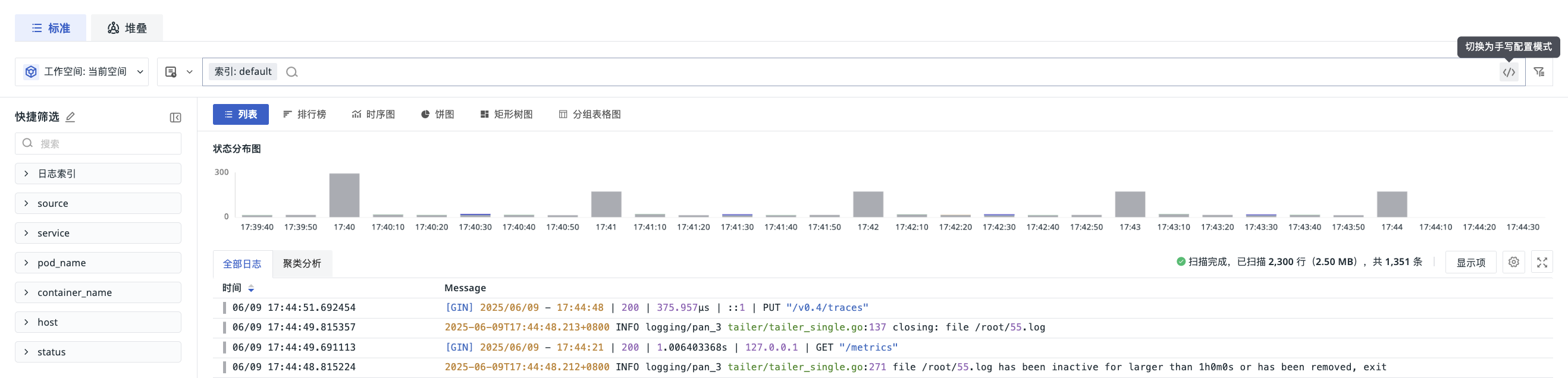
Handwrite Query
Click the toggle button on the right side of the search bar to enter the manual query mode.
JSON Field Extraction
Note
This feature is only available to user roles with DQL query permissions.
DQL queries support extracting nested values from JSON fields in log data. Simply add a field path with an @ symbol in the DQL query statement, and the system will automatically recognize this configuration and display the extracted value as an independent field in the query results. For example:
- Normal query:

- Expected query after extracting embedded fields:

In the Log Explorer, if you want to directly view the extracted values from the JSON text of each log's message field in the data list, add a field in the format @target_fieldname in the Display Columns. For example, in the image below, we add @fail_reason, which has already been configured in the DQL query statement, to the Display Columns:

Log Color Highlighting
To help quickly locate key information in logs, after entering a search condition, the page will highlight all matching content in the current query results, no longer limited to the message field. If other fields displayed in the list, stacked list, or log content match the search condition, they will also be highlighted simultaneously.
Expand and Copy a Single Log Line
- Click the button on a log entry to view the full content of that log. If the log supports JSON format, it will be displayed in JSON format; otherwise, the content will be displayed normally;
- Click the button to copy the entire log content to the clipboard.

Display Lines
In the log data list, the trigger time and content of each log are displayed by default. You can use the "Display Lines" option to choose to display "1 line", "3 lines", "10 lines", or "Full content" to view the complete log information.

Explanation of "Scanned Volume" and "Count" Text
- Scanned Volume: Indicates the size of data scanned during the actual execution of the query. It is used to measure query consumption. The larger the scanned volume, the larger the scope of data that needs to be retrieved and processed for this query.
- Count: Indicates the number of results ultimately returned by the query. It is used to measure the scale of query results. The count only represents the number of matched results and is not equivalent to the amount of data scanned during the query process.
Note that there is no fixed conversion relationship between scanned volume and count. Since the size of a single log is not fixed, and a query may scan a large amount of data but only return a small number of results, you cannot directly infer the scanned volume from the count, nor can you deduce the return count from the scanned volume.

Settings
Create Monitor
When filtering log data, if you need further alert monitoring on the filtered results, you can create a monitor with one click. The system will automatically apply your selected index, data source, and search conditions, simplifying the configuration process.
Note
-
If you have selected another workspace in the upper left corner of the Log Explorer, the search conditions will not be synchronized to the monitor configuration page, and the monitor configuration page will default to empty;
-
In the standard Commercial Plan, the site-level
left*query feature is enabled by default. You only need to enable the workspace-levelleft*query to support the monitor'sleft*query. For the Deployment Plan, you can enable or disable the site-levelleft*query independently. Only when both the site-level and workspace-levelleft*queries are enabled can the monitor performleft*queries. Otherwise, if the Log Explorer is configured with aleft*query, jumping to the monitor may result in a query error.


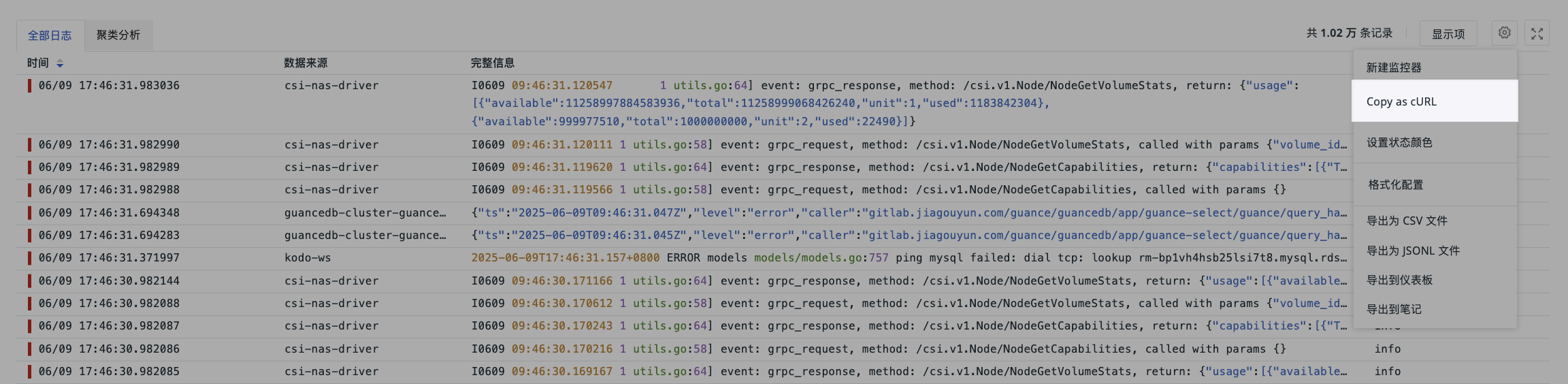
Copy as cURL
In the Log Explorer, you can retrieve log data via the command line. In the Settings on the right side of the log data list, click the Copy as cURL button to copy the corresponding cURL command. Paste the command into a host terminal and execute it to retrieve the log data that matches the filter and search conditions for the current time period.
Example
After copying the cURL command, it looks like the image below: Replace <Endpoint> with the domain name, and replace <DF-API-KEY> with the Key ID from API Management.
For more parameter descriptions, refer to DQL Data Query.
For more API information, refer to Open API.
curl '<Endpoint>/api/v1/df/query_data?search_after=\[1680226330509,8572,"L_1680226330509_cgj4hqbrhi85kl1m6os0"\]&queries_body=%7B%22queries%22:\[%7B%22uuid%22:%222eb41760-cf6e-11ed-a983-7d559044c3fc%22,%22qtype%22:%22dql%22,%22query%22:%7B%22q%22:%22L::re(%60.*%60):(%60*%60)%7B+%60index%60+IN+\[%27default%27\]+%7D%22,%22highlight%22:true,%22limit%22:50,%22orderby%22:\[%7B%22time%22:%22desc%22%7D\],%22_funcList%22:\[\],%22funcList%22:\[\],%22disableMultipleField%22:false,%22disable_slimit%22:false,%22is_optimized%22:true,%22offset%22:0,%22search_after%22:\[1680226330509,8572,%22L_1680226330509_cgj4hqbrhi85kl1m6os0%22\],%22timeRange%22:\[1680187562081,1680230762081\],%22tz%22:%22Asia%2FShanghai%22%7D%7D\]%7D' \
- H 'DF-API-KEY: <DF-API-KEY>' \
- -compressed \
- -insecure
Note
Only Standard Members and above can copy the command line.
In addition to this export method, you can also use other log data export methods.
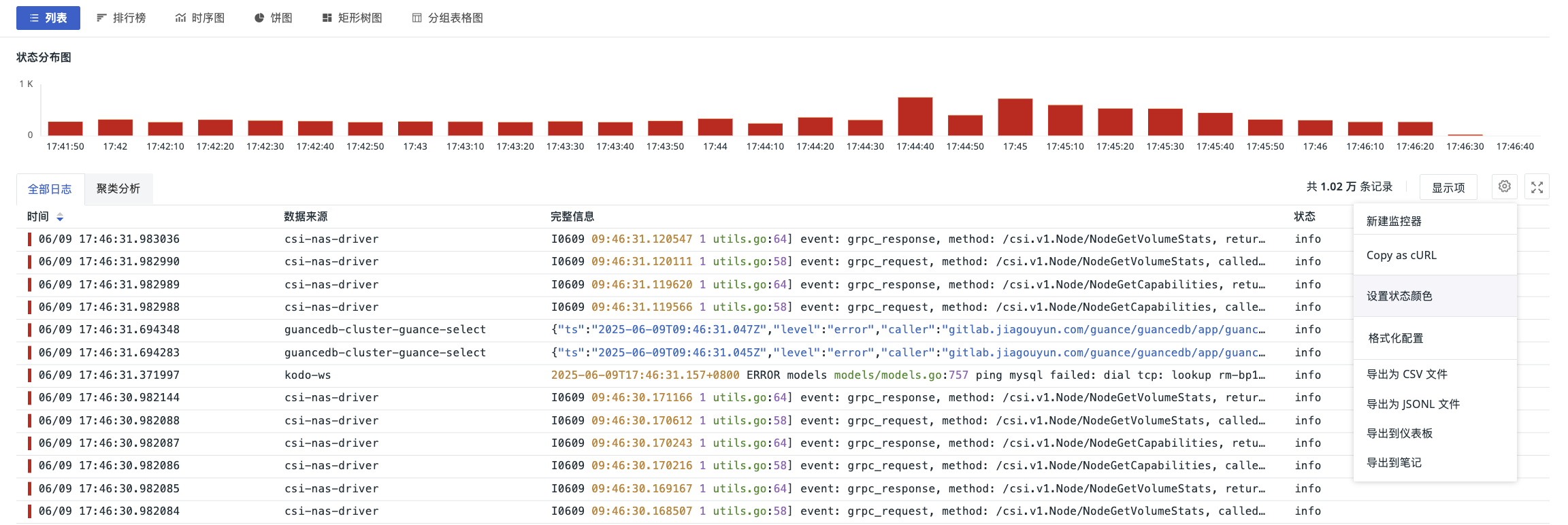
Set Status Colors
The system assigns default colors to status values. If you need to customize the colors displayed for different statuses in the explorer, click Set Status Colors to modify them.
Format Configuration
Note
Only Administrators and above can perform format configuration in the explorer.
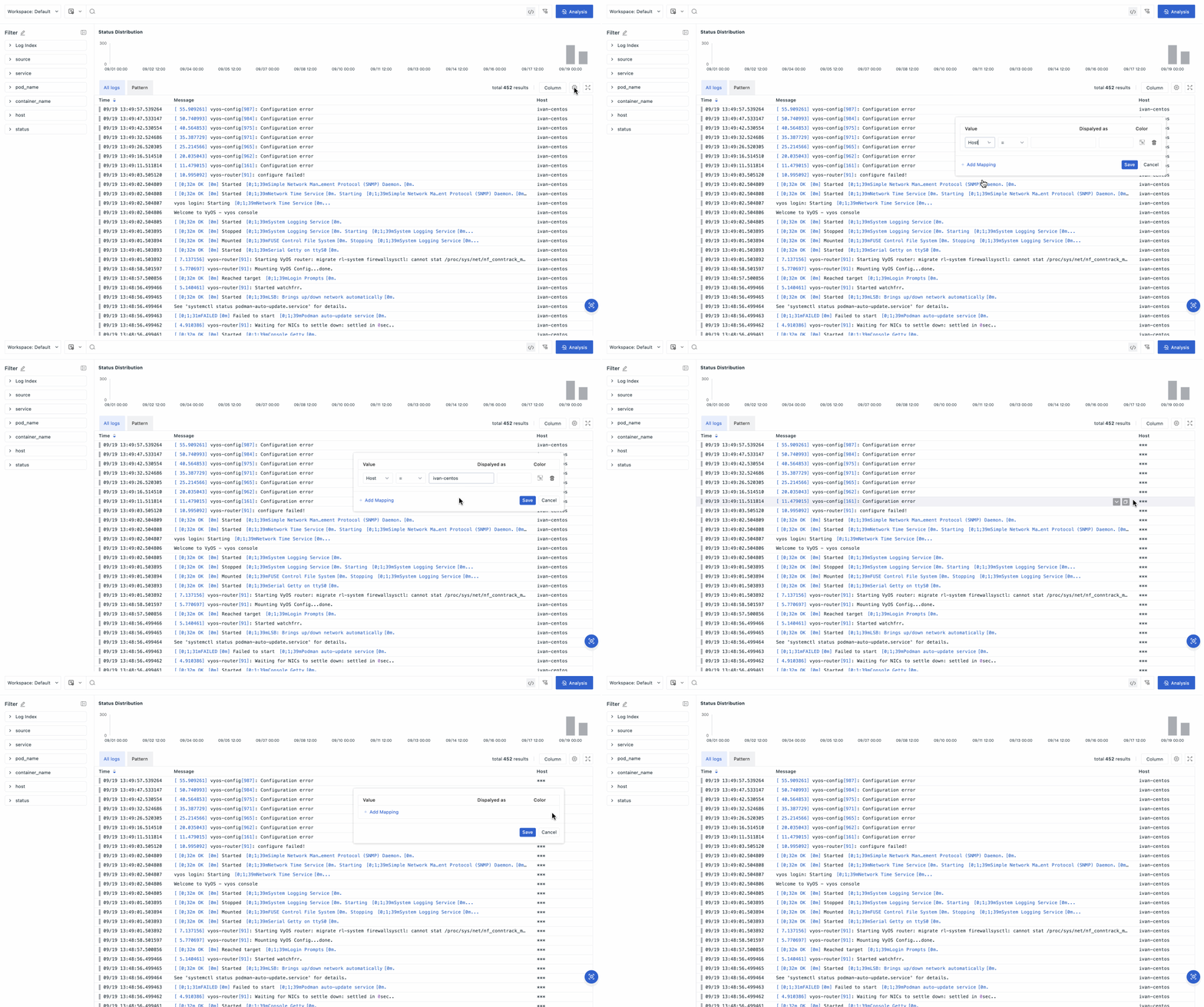
Through format configuration, you can hide sensitive log content, highlight important log content, or replace log content to achieve quick filtering.
- Click Settings in the upper right corner of the explorer list;
- Click Format Configuration;
-
Add a mapping rule, enter the following content, and save:
- Field: Specify the log field (e.g.,
content); - Match Method: Select the match method (currently supports =, !=, match, not match);
- Match Content: Enter the content to match (e.g., DEBUG);
- Display As: Enter the replacement display content (e.g., **).
- Field: Specify the log field (e.g.,
Log Data Export
In the logs, you can first filter the required data, then export it as a CSV, JSONL, or TXT file, or export it to a dashboard or note.
In an HTTPS environment, a single CSV or TXT file export can contain up to 1,000,000 logs; the JSONL file format does not have this limit. The actual export time depends on the data volume and query conditions, so please wait patiently for the export to complete.
If you need to export a specific log, open the log's detail page and click the button in the upper right corner.
Advanced Linkage Configuration
For more details, refer to Advanced Linkage Configuration.