TOBY AI TruePilot
TOBY AI TruePilot comes with each Workspace and is ready to use without additional configuration. Users can ask questions directly in natural language, or on a specific page have TOBY AI TruePilot complete analysis or content generation by combining the current object, accessible Workspace data, and enabled capabilities.
TOBY AI TruePilot is designed for immediate tasks initiated by users, helping them complete data querying, analysis, and content creation in the Workspace more efficiently and accurately.
Getting Started
Click the TOBY AI icon in the top navigation bar of the platform, and the TOBY AI TruePilot drawer expands on the right side of the page. You can open TOBY AI TruePilot on any page and switch pages or continue operating the platform during the conversation. Click the icon again to collapse the drawer.
At the top of the drawer, an entry to TOBY AI Agents is provided; click it to enter the corresponding workbench.

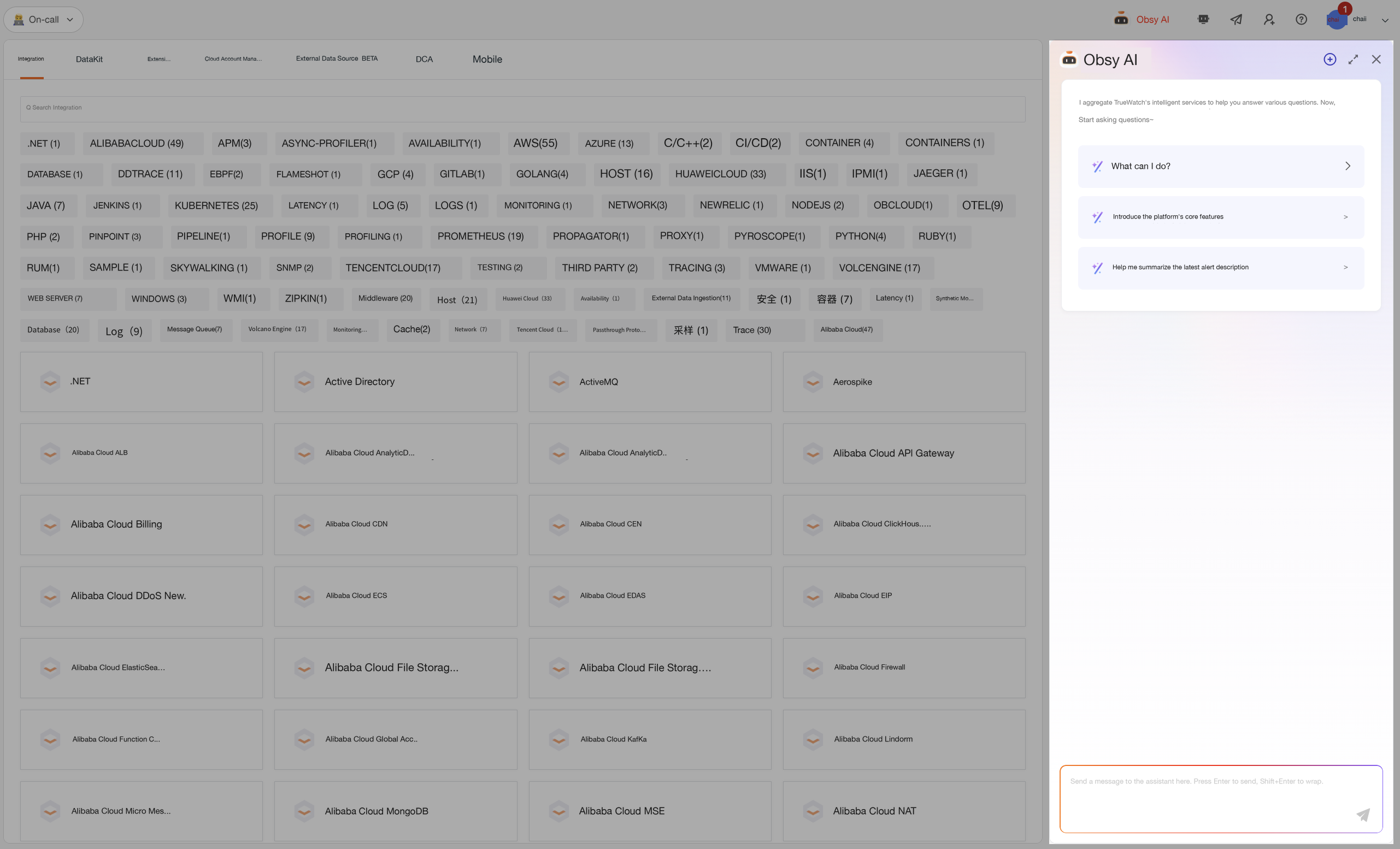
The TOBY AI TruePilot drawer supports the following general operations:
- New Conversation: Click
+to create a new conversation that does not inherit the current conversation's context; - History: View, continue, or manage previous conversations;
- Expand or Restore: Expand to full screen to view complex content; click again to restore the default width;
- Close: Collapse the drawer; the current conversation content is retained.
Ask with Current Page Context
When you open TOBY AI TruePilot on a supported page, it can understand your question by incorporating the current object, time range, and filter conditions, reducing the need to repeatedly describe page information. For example, on the error trace detail page you can ask "Why did this trace fail?", and on the Host list page you can ask "Which hosts require priority attention right now?"
It is recommended to use it as follows:
- First go to the detail or list page you need to analyze, and set an appropriate time range and filter conditions;
- Open TOBY AI TruePilot and describe the phenomena, risks, or results you want to understand;
- If you have switched objects or adjusted filter conditions, confirm that the page displays the new analysis scope before asking questions.
Page context only takes effect on supported pages and does not expand the current user's data or feature permissions. When the information provided by the page is insufficient, TOBY AI TruePilot will state the missing evidence or ask you to provide additional conditions. For the specific supported scope and usage, see Observability Analysis.
Select Model Intelligence
Before sending a question, you can select a model intelligence tier in the input area based on task complexity:
| Tier | Use Cases |
|---|---|
| Auto | Automatically balances response speed and analysis effectiveness based on the task; suitable for most everyday questions. |
| Fast | Prioritizes response speed; suitable for simple queries, content organization, and quick confirmations. |
| Standard | Balances accuracy and efficiency; suitable for routine analysis and content generation. |
| Pro | Uses deeper reasoning; suitable for complex troubleshooting, planning, and multi-step analysis. |
If you are unsure which to choose, use Auto. Model intelligence only affects how subsequent questions in the current conversation are processed and does not expand the data, features, or operational permissions accessible to the current user. For complex tasks, using a higher tier may take longer and consume more credits.
Select Response Format
Click Response Format at the top of the conversation window to choose how responses are presented according to your reading preference:
- Rich Card: Presents responses as structured cards, highlighting information hierarchy and key points;
- Markdown: Presents responses in Markdown format, preserving the original text structure.
Waiting and Automatic Retry
When the model service is busy or requests are throttled, TOBY AI TruePilot automatically waits and retries. The page displays the wait time and retry progress. You do not need to resubmit your question while waiting; if it is still not completed after retries, please try again later as prompted on the page.
Conversation History
TOBY AI TruePilot saves conversation history so you can continue previous analyses. Click the conversation history icon at the top of the drawer to view the conversation list sorted by most recent update time.
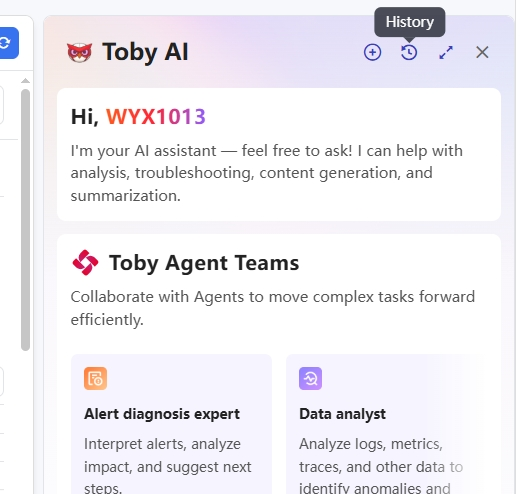
In the conversation history list, you can:
- Click a conversation to restore its existing context and continue asking questions;
- Rename a conversation for easier identification later;
- Delete conversations you no longer need.
Note
- Conversation history is isolated by Workspace and user and is visible only to the current user.
- Conversation history is retained for up to 30 days and will be automatically cleaned up after the retention period.
Quick Prompts
The first time you open TOBY AI TruePilot or start a new conversation, the window displays quick prompts, such as:
- What can you do?
- Introduce the core features of the platform.
- Help me summarize the most recent alert description.
Quick prompts help you get started with a conversation. When carrying out specific tasks, it is recommended to include the analysis object, time range, and expected result. For example, instead of simply entering "Help me look", you can enter "Analyze the current error trace, explain the most likely failure node, impact scope, and next troubleshooting suggestions".
Capabilities Overview
Capabilities are grouped into the following four categories by usage objective:
| Capability Category | Included Capabilities | Primary Value |
|---|---|---|
| Observability Analysis | Page Analysis and Root Cause Diagnosis, App Suspected White Screen Detection, Infrastructure Page Analysis, List and Asset Analysis, Database Query Optimization, Alert Aggregation and Compression, Preliminary Incident Analysis. | Combines the current object, page scope, and observability data to extract anomaly clues, shortening incident assessment and root cause investigation time. |
| Data Retrieval | DQL / PromQL Assistant, Explorer Natural Language Search. | Converts natural language into query statements or filter conditions, lowering the barrier to using DQL, PromQL, and Explorer syntax, and improving data retrieval efficiency. |
| Resource Generation | Create and Modify Dashboards, Generate Pipeline Parsing Rules. | Generates dashboard drafts and Pipeline parsing rules based on business objectives and Workspace metadata, reducing repetitive configuration and from-scratch authoring effort. |
| Knowledge Services | Create Notes and Runbooks, Product Documentation Q&A. | Organizes analysis results into reusable notes or operational procedures, and provides usage guidance based on product documentation, reducing the cost of organizing, searching, and sharing knowledge. |
The completeness and accuracy of analysis results and generated content from TOBY AI TruePilot are affected by factors such as site version, deployment configuration, user permissions, current page context, and the completeness of observability data collection. When using the results, it is recommended to verify key conclusions against raw data and the actual environment, and complete the necessary validation before performing subsequent operations.
Usage Recommendations
- When you need to analyze an object, first go to the corresponding detail or list page, and then open TOBY AI TruePilot. This reduces repeated description and keeps results within the current filter scope.
- State the objective, time range, and expected output clearly in your question. When you need to generate queries or configurations, also provide the data domain, samples, and key constraints.
- TOBY AI TruePilot uses only data and features that the current user is authorized to access. When data, permissions, or necessary context are missing, the results will state the limitations; you cannot assume the issue has been fully verified based on that.
- Confirm the queries, configurations, and remediation recommendations generated by TOBY AI TruePilot before using them in a production environment. Processes involving resource creation remain subject to the permissions and save operations of the corresponding modules.