Create a Forwarding Rule
Prerequisites
Only for Commercial Plan.
Create a New Rule
Navigate to Data Forwarding > Forwarding Rules > Create Rule.
After a data forwarding rule is created, the system will validate the rule every 5 minutes.
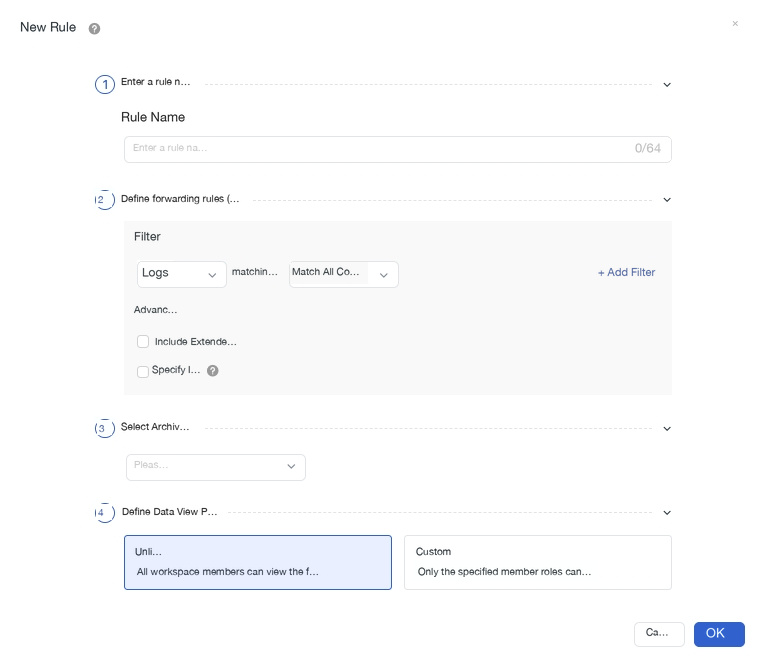
Step 1: Enter a Rule Name
Enter a name for the current data forwarding rule. The name can contain up to 64 characters. The rule name is used to identify the rule in the rule list, search, deletion confirmation, and audit records.
Step 2: Define the Forwarding Rule
1. Data Source
Includes Logs, APM, RUM, LLM, Agent, Events, and Audit Events.
2. Filter Conditions
Supports custom logic operators between conditions. Multiple conditions can be added.
-
All conditions: Only log data that meets all filter conditions will be saved to data forwarding.
-
Any condition: Log data that meets any one filter condition will be saved to data forwarding.
Condition operators are listed in the table below:
| Condition Operator | Match Type |
|---|---|
| in, not in | Exact match, supports multiple values (comma-separated) |
If no filter condition is added here, it means all data is saved.
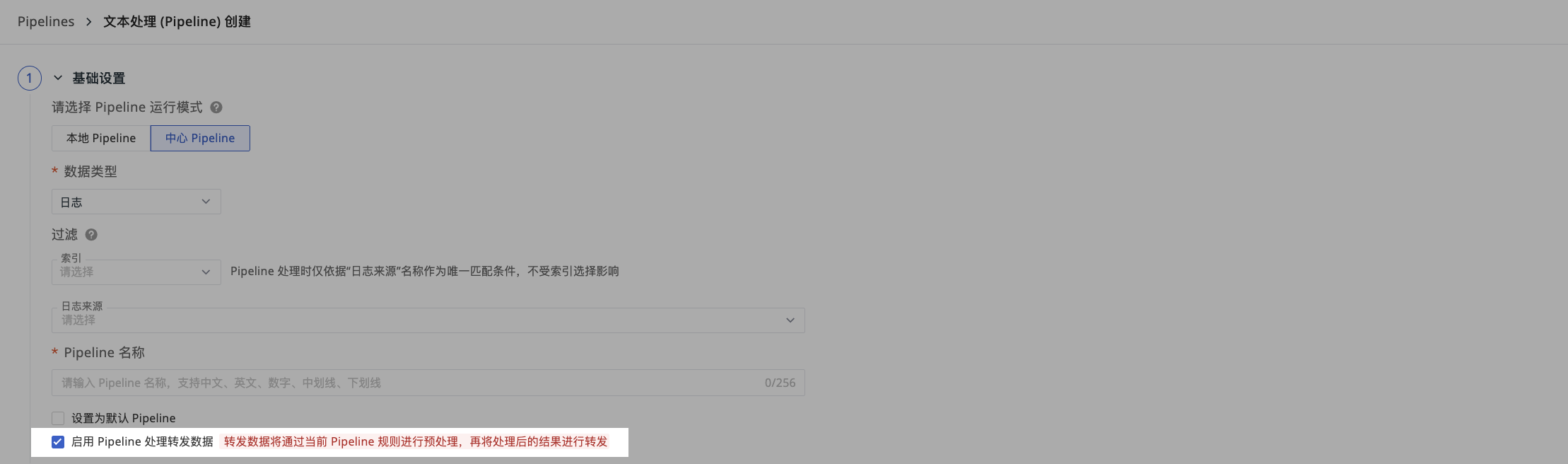
Pipeline Processing of Forwarded Data
The central Pipeline script affects both the forwarding condition filtering and the final content.
When creating the script, you can check "Enable Pipeline to process forwarded data": if checked, the data is first processed by the script before being filtered and forwarded; if unchecked, the raw data is forwarded directly.
3. Advanced Settings
When Logs is selected as the data source, you can further configure:
-
Include extended fields: By default, only the
messagefield content of matching logs is forwarded. If "Include extended fields" is checked, the entire log data matching the condition will be forwarded.- When multiple data forwarding rules are created, rules with "Include extended fields" checked are matched first. If different rules hit the same data, the full log data is displayed according to the logic of "Include extended fields".
-
Limit index: Select a natively written index from the dropdown. Once enabled, only log data from the selected index will be forwarded. (❗️Enabling "Limit index" significantly reduces the performance overhead of this data forwarding rule.)
Step 3: Select the Forwarding Destination
To provide a more comprehensive data forwarding method, the system offers the following forwarding destinations by type:
| Type | Forwarding Destination |
|---|---|
| Built-in storage | TrueWatch: Matching log data is saved to OSS, S3, or OBS object storage on the TrueWatch side |
| Object storage | AWS S3, Huawei Cloud OBS, Alibaba Cloud OSS, Volcengine TOS, GCP GCS |
| Analytics platform | Apache Doris, TiDB Cloud Lake |
| Message queue | Kafka |
Note
-
GCP GCS is only supported in Hong Kong (China) and Global sites.
-
When the data forwarding storage object is set to TrueWatch, the minimum default storage duration for log data is 180 days. Once the rule is created, it cannot be canceled. Storage fees are charged daily. You can modify this by going to Management > Workspace Settings > Change Data Storage Policy.
Storage Format
Select the data storage format as needed:
-
JSON: Text format (❗️When forwarding data to TrueWatch, only JSON storage format is supported).
-
Parquet: Columnar storage format.
| Feature | JSON | Parquet |
|---|---|---|
| Functional positioning | Standard format for immediate consumption and integration | Optimized format for low-cost archival and offline analysis |
| Data state | Hot data that can be reviewed. After forwarding, the data is stored and displayed normally within the TrueWatch platform (e.g., in the Log Explorer), maintaining dual-end consistency and visibility | Cold data for external processing. After forwarding, the original logs are still stored and displayed normally within the TrueWatch platform, but the copy forwarded in Parquet format, due to format limitations, cannot be reloaded or reviewed in the TrueWatch interface |
| Core scenario | While maintaining data observability within TrueWatch, provides a directly parseable copy for real-time consumption by external systems (e.g., SIEM, self-built log stores) | Generates a dedicated copy with lower storage costs for efficient batch analysis by external big data systems on the matching data |
| Business use | Downstream business systems can obtain near-real-time readable logs identical to those in the TrueWatch interface via API, object storage files, or message queues, for: |
Downstream big data systems can periodically (e.g., hourly/daily) batch read Parquet files from object storage for: |
| Key impact | Dual write, dual-end visibility. Incurs additional storage costs but ensures data consistency and immediate availability across the TrueWatch ecosystem | Format-specific, with review limitations. The generated Parquet copy is optimized for external analysis and is not suitable for re-importing and viewing, so this copy itself cannot be viewed in TrueWatch. However, the original logs' observability within TrueWatch is unaffected |
Encrypted Storage
When encrypted storage is enabled, the system will perform symmetric encryption on the forwarded data. Later, if you need to query or view this data, the system can decrypt the encrypted data back to its original content for display.
What is Symmetric Encryption?
Symmetric encryption is an encryption method that uses the same key to encrypt and decrypt data, just like a single key can both lock and unlock the same lock.
Step 4: Define Data View Permissions
Set view permissions for the forwarded data to enhance data security.
-
Unrestricted: All members of the workspace can view the forwarded data.
-
Custom: Specify the member roles that can view the forwarded data.